Application Layer Protocols: DNS, Email, SSH & Telnet Explained
Explore Application Layer protocols like DNS, HTTP, SMTP, POP3, IMAP, SSH, and Telnet. Understand how they enable web browsing, email, and secure remote access.

1. Application Layer
Application Layer is the topmost (7th) layer of the OSI model and the topmost layer of the TCP/IP model. It provides network services directly to end-user applications.
It enables software programs like browsers, email clients, and file transfer tools to communicate over the network using standard protocols.
Important Points
It is the topmost layer of the TCP/IP model.
It acts as an interface between user applications and the network.
It provides services through application protocols.
Different applications use different protocols for communication.
It does not transmit data itself; it uses the Transport Layer (TCP or UDP) to send and receive data.
Common protocols of this layer are HTTP, HTTPS, FTP, DNS, SMTP, POP3, IMAP, and Telnet.
Example
Service | Protocol |
|---|---|
Web browsing | HTTP / HTTPS |
Email sending | SMTP |
Email receiving | POP3 / IMAP |
File transfer | FTP |
Domain name lookup | DNS |
Remote login | Telnet |
Functions of Application Layer
Provides an interface for users and applications to access network services.
Defines communication protocols such as HTTP, FTP, DNS, SMTP, POP3, and Telnet.
Enables services like web browsing, email, file transfer, remote login, and domain name resolution.
Supports communication between client and server applications.
Manages application-level communication between devices.
Allows different applications running on different computers to exchange data.
Provides services required by user applications over the network.
Example
When you type www.google.com in your web browser:
DNS converts www.google.com into its IP address.
HTTP/HTTPS requests the web page from Google's server.
The server sends the web page back to your browser.
You can view and interact with the website.
All these services are provided by the Application Layer.
Application Layer Protocols and Port Numbers
Protocol | Port Number | Purpose |
DNS | 53 (UDP/TCP) | Domain name to IP address resolution |
HTTP | 80 (TCP) | Web page transfer |
HTTPS | 443 (TCP) | Secure web page transfer |
FTP | 20, 21 (TCP) | File transfer between hosts |
SMTP | 25 (TCP) | Sending emails |
POP3 | 110 (TCP) | Receiving/downloading emails |
IMAP | 143 (TCP) | Accessing emails on server |
Telnet | 23 (TCP) | Remote login (insecure) |
SSH | 22 (TCP) | Secure remote login |
Domain Name System (DNS)
DNS is a hierarchical, distributed naming system that translates human-readable domain names (like www.google.com) into machine-readable IP addresses (like 142.250.64.46).
It acts like a phone book of the internet, allowing users to access websites using easy-to-remember names instead of numeric IP addresses.
Important Points
Humans remember domain names, while computers communicate using IP addresses.
DNS automatically converts a domain name into an IP address.
Every website has a unique IP address.
DNS uses a distributed database, so no single server stores all domain names.
It works on Port 53.
It uses UDP for most queries and TCP for large responses and zone transfers.
Example
Suppose you want to open www.youtube.com.
You type www.youtube.com in your browser.
DNS finds the IP address of www.youtube.com.
Your browser uses that IP address to connect to YouTube's server.
The YouTube website opens on your screen.
Without DNS, you would have to remember and type the IP address of every website instead of its name.
Why DNS is Needed
Computers communicate using IP addresses (numbers), but humans prefer names
Remembering IP addresses like 142.250.64.46 is difficult for users
DNS automatically converts domain names to IP addresses behind the scenes
When any IP address changes, only the DNS record needs updating, not the user
DNS Hierarchy
The DNS hierarchy is a tree-like structure that organizes domain names into different levels, making it easier to locate the correct IP address of a website.
Important Points
DNS is organized in a hierarchical (tree) structure.
Each level has a specific responsibility.
A DNS query moves from the top level to the lower levels until the correct IP address is found.
The DNS hierarchy consists of five main levels:
Root Domain
Top-Level Domain (TLD)
Second-Level Domain (SLD)
Subdomain
Host Name
                Root Domain (.)
                      │
                   .com (TLD)
                      │
              google.com (SLD)
                      │
          mail.google.com (Subdomain)
                      │
       www.mail.google.com (Host Name)
Root Domain (.)
The Root Domain is the highest level of the DNS hierarchy. It directs DNS queries to the appropriate Top-Level Domain (TLD) server.
Example: . (Root)
Top-Level Domain (TLD)
A Top-Level Domain (TLD) is the first level below the Root Domain. It identifies the type or category of a website.
Examples:
.com
.org
.net
.edu
.in
Second-Level Domain (SLD)
A Second-Level Domain (SLD) is the registered name chosen by an individual or organization. It is combined with the TLD to create a unique domain name.
Examples:
google.com
amazon.in
beu.ac.in
Subdomain
A Subdomain is a subdivision of a registered domain used to organize different sections or services of a website.
Examples:
mail.google.com
docs.google.com
student.beu.ac.in
Host Name
A Host Name is the name of a specific computer or server within a domain. It identifies the exact machine that provides a service.
Examples:
www.google.com → www is the host name.
mail.google.com → mail is the host name.
Example
For the website www.google.com:
Level | Value |
|---|---|
Root Domain |
|
Top-Level Domain (TLD) |
|
Second-Level Domain (SLD) |
|
Host Name |
|
DNS Servers
DNS servers are specialized servers that work together to translate a domain name (such as www.google.com) into its corresponding IP address. Each DNS server has a specific role in the DNS resolution process.
Important Points
DNS uses multiple servers instead of a single server.
Each server performs a specific task.
Together, they help find the correct IP address quickly.
The four main DNS servers are:
Local DNS Resolver
Root Name Server
Top-Level Domain (TLD) Name Server
Authoritative Name Server
Local DNS Resolver (Recursive Resolver)
A Local DNS Resolver is the first DNS server that receives a user's DNS request. It searches for the required IP address and communicates with other DNS servers if the answer is not already available in its cache.
Important Points
It is provided by the Internet Service Provider (ISP) or a public DNS service.
It checks its cache before contacting other DNS servers.
It communicates with the Root, TLD, and Authoritative Name Servers.
It returns the final IP address to the user's device.
Example
When you type www.google.com, your computer first sends the request to the Local DNS Resolver.
Root Name Server
A Root Name Server is the highest-level DNS server. It receives queries from the Local DNS Resolver and directs them to the appropriate Top-Level Domain (TLD) Name Server.
Important Points
It is the first server contacted if the answer is not in the Local DNS Resolver's cache.
It does not store the IP addresses of websites.
It only knows where the appropriate TLD server is located.
There are 13 logical Root Server systems distributed worldwide.
Example
For www.google.com, the Root Name Server directs the query to the .com TLD Name Server.
Top-Level Domain (TLD) Name Server
A Top-Level Domain (TLD) Name Server stores information about domains belonging to a specific top-level domain, such as .com, .org, or .in, and directs the query to the correct Authoritative Name Server.
Important Points
It manages domains under a specific TLD.
It does not store the website's IP address.
It identifies the correct Authoritative Name Server.
Example
For www.google.com, the .com TLD Name Server directs the query to Google's Authoritative Name Server.
Authoritative Name Server
An Authoritative Name Server stores the actual DNS records of a domain and returns the correct IP address to the Local DNS Resolver.
Important Points
It is the final server in the DNS lookup process.
It stores DNS records such as A, AAAA, MX, CNAME, and NS.
It provides the final answer to the DNS query.
Example
For www.google.com, Google's Authoritative Name Server returns the IP address of www.google.com to the Local DNS Resolver.
Example
When you open www.google.com:
Your computer sends the request to the Local DNS Resolver.
The Local DNS Resolver contacts the Root Name Server.
The Root Name Server directs it to the .com TLD Name Server.
The .com TLD Name Server directs it to Google's Authoritative Name Server.
The Authoritative Name Server returns Google's IP address.
The Local DNS Resolver sends the IP address back to your browser, and the website opens.
DNS Records
DNS records are entries stored in the Authoritative Name Server that contain information about a domain, such as its IP address, mail server, or other services. They help DNS return the correct information when a domain name is requested.
Important Points
DNS records are also called Resource Records (RRs).
They are stored in the Authoritative Name Server.
Each record has a specific purpose.
Different services use different types of DNS records.
When a DNS query reaches the Authoritative Name Server, it checks the required record and returns the requested information.
A Record (Address Record)
An A Record maps a domain name to an IPv4 address.
Example
Domain Name | IPv4 Address |
|---|---|
|
|
AAAA Record (Quad-A Record)
An AAAA Record maps a domain name to an IPv6 address.
Example
Domain Name | IPv6 Address |
|---|---|
|
|
MX Record (Mail Exchange Record)
An MX Record specifies the mail server responsible for receiving emails for a domain.
Example
For the domain gmail.com, the MX record points to Google's mail servers that receive incoming emails.
CNAME Record (Canonical Name Record)
A CNAME Record creates an alias for another domain name. It allows multiple domain names to point to the same website.
Example
Alias | Original Domain |
|---|---|
|
|
Here, www.example.com is an alias of example.com.
NS Record (Name Server Record)
An NS Record identifies the Authoritative Name Servers responsible for a domain.
Example
For google.com, the NS records point to Google's Authoritative Name Servers, such as:
ns1.google.comns2.google.com
Record Type | Purpose |
|---|---|
A | Maps a domain name to an IPv4 address |
AAAA | Maps a domain name to an IPv6 address |
MX | Specifies the mail server for a domain |
CNAME | Creates an alias for another domain name |
NS | Identifies the Authoritative Name Server of a domain |
DNS Resolution Process
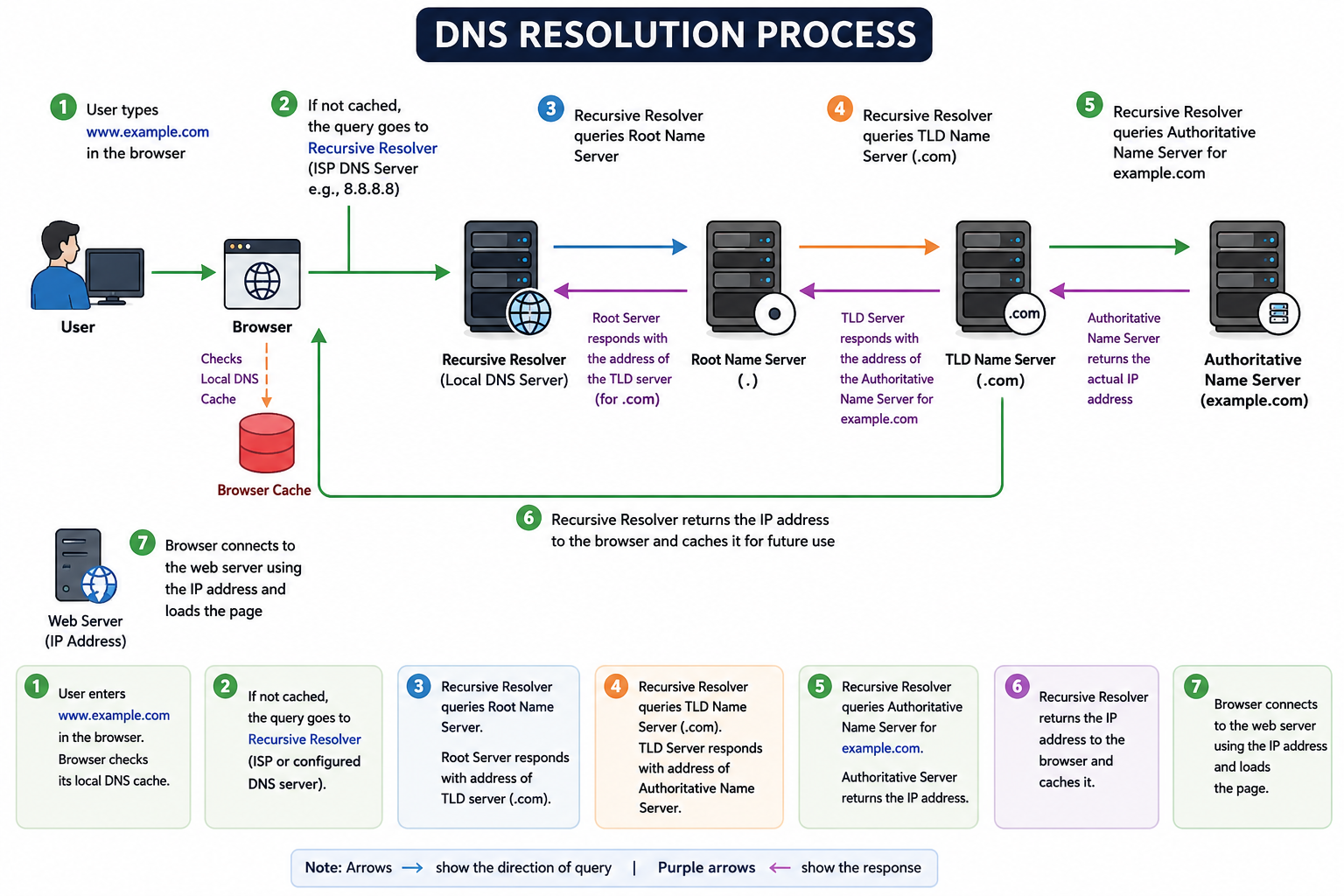
The DNS Resolution Process is the process of converting a domain name into its corresponding IP address by communicating with different DNS servers. Once the IP address is found, the browser uses it to connect to the web server and display the requested website.
It converts a domain name into an IP address.
It involves the Browser, Local DNS Resolver, Root Name Server, TLD Name Server, and Authoritative Name Server.
The Local DNS Resolver stores the IP address in its cache to make future requests faster.
Steps of DNS Resolution
Step 1: Browser Checks Local DNS Cache
The user enters www.example.com in the browser. The browser first checks its local DNS cache to see if the IP address is already stored.
Why?
If the IP address is found in the cache, the browser can open the website immediately without contacting any DNS server.
Step 2: Request Sent to Local DNS Resolver (Recursive Resolver)
If the IP address is not found in the browser's cache, the request is sent to the Local DNS Resolver (also called the Recursive Resolver), which is usually provided by the ISP or a public DNS service such as 8.8.8.8 (Google DNS).
Why?
The Recursive Resolver performs the entire DNS lookup on behalf of the client.
Step 3: Resolver Contacts the Root Name Server
The Recursive Resolver sends the request to the Root Name Server.
The Root Name Server does not know the website's IP address. Instead, it returns the address of the correct Top-Level Domain (TLD) Name Server, such as .com.
Why?
The Root Server helps identify which TLD server should be contacted next.
Step 4: Resolver Contacts the TLD Name Server
The Recursive Resolver sends the request to the .com TLD Name Server.
The TLD Name Server returns the address of the Authoritative Name Server for example.com.
Why?
The TLD Server knows which Authoritative Name Server stores the DNS records for the requested domain.
Step 5: Resolver Contacts the Authoritative Name Server
The Recursive Resolver sends the request to the Authoritative Name Server.
The Authoritative Name Server checks the required DNS Record (usually an A Record or AAAA Record) and returns the actual IP address.
Why?
This server stores the official DNS records of the domain.
Step 6: Resolver Returns the IP Address
The Recursive Resolver receives the IP address from the Authoritative Name Server and sends it back to the browser.
It also stores the IP address in its DNS cache for future requests.
Why?
Caching reduces the time required for future DNS lookups.
Step 7: Browser Connects to the Web Server
The browser uses the received IP address to establish a connection with the web server.
The web server responds by sending the requested web page, which is then displayed in the browser.
Example
If you type www.google.com in your browser:
Browser checks its cache.
If not found, it sends the request to the Recursive Resolver.
The Resolver contacts the Root Name Server.
The Root Server directs it to the .com TLD Name Server.
The TLD Server directs it to Google's Authoritative Name Server.
The Authoritative Name Server returns Google's IP address.
The browser connects to Google's server and opens the website.
Types of DNS Queries
DNS queries are requests sent by a client or DNS server to obtain the IP address or other DNS information for a domain name.
DNS uses different query types to find the required information.
The three main types of DNS queries are:
Recursive Query
Iterative Query
Reverse (Inverse) Query
Recursive Query
A Recursive Query is a DNS query in which the client asks the Recursive Resolver to find the final answer. The resolver contacts multiple DNS servers on behalf of the client and returns the final IP address.
The client sends only one request.
The Recursive Resolver performs the entire DNS lookup.
The client receives the final IP address without contacting other DNS servers.
It is the most common query used by web browsers.
How It Works
The client sends a query to the Recursive Resolver.
The Recursive Resolver contacts the Root Name Server.
It then contacts the TLD Name Server.
Next, it contacts the Authoritative Name Server.
The Authoritative Name Server returns the IP address.
The Recursive Resolver sends the final IP address back to the client.
Example
When you open www.google.com, your browser sends a single request to the Recursive Resolver. The resolver performs all the remaining work and finally returns Google's IP address.
Iterative Query
An Iterative Query is a DNS query in which each DNS server returns the best information it has instead of finding the final answer. The client or resolver must contact the next DNS server until the correct IP address is found.
Each DNS server returns a referral instead of the final answer.
The client or resolver continues the search by contacting the next DNS server.
It reduces the workload on individual DNS servers.
It is commonly used during communication between DNS servers.
How It Works
The client (or resolver) sends a query to the Root Name Server.
The Root Name Server returns the address of the appropriate TLD Name Server.
The client (or resolver) contacts the TLD Name Server.
The TLD Name Server returns the address of the Authoritative Name Server.
The client (or resolver) contacts the Authoritative Name Server.
The Authoritative Name Server returns the final IP address.
Example
To find the IP address of www.example.com, the Root Server directs the query to the .com TLD Server, and the TLD Server then directs it to the Authoritative Name Server, which finally returns the IP address.
Reverse (Inverse) Query
A Reverse Query is a DNS query used to find the domain name associated with a given IP address. It uses a PTR (Pointer) Record stored under the in-addr.arpa (IPv4) or ip6.arpa (IPv6) domain.
It converts an IP address into a domain name.
It uses PTR Records.
It is mainly used for email verification, network troubleshooting, and security.
Example
8.8.8.8 → dns.google
Difference Between Recursive and Iterative Query
Recursive Query | Iterative Query |
|---|---|
Resolver finds the final answer. | Each server returns the best information it has. |
Client sends only one request. | Client or resolver contacts multiple servers. |
Client receives the final IP address directly. | Client or resolver continues the search until the final answer is found. |
More work is done by the Recursive Resolver. | Work is shared among different DNS servers. |
Example
Suppose you want to open www.google.com.
In a Recursive Query, your browser asks the Recursive Resolver once, and it returns the final IP address.
In an Iterative Query, the requester follows referrals from the Root Server → TLD Server → Authoritative Name Server until the IP address is found.
DNS Record Types
Record Type | Purpose |
A Record | Maps a domain name to an IPv4 address |
AAAA Record | Maps a domain name to an IPv6 address |
MX Record | Mail Exchange - specifies mail server for a domain |
CNAME Record | Canonical Name - creates an alias for another domain name |
NS Record | Name Server - identifies the authoritative DNS servers for a domain |
PTR Record | Pointer - used for reverse DNS lookup (IP to domain name) |
TXT Record | Stores text information, used for verification and security |
SOA Record | Start of Authority - contains administrative info about the zone |
Exam Tip: DNS uses UDP port 53 for regular queries (fast, small packets). It uses TCP port 53 for large responses and zone transfers between DNS servers. Remember this for MCQs.
DNS Cache
The DNS Cache is a temporary storage that saves recently resolved domain names and their IP addresses. It helps reduce DNS lookup time by reusing previously stored information instead of performing the entire DNS resolution process again.
DNS Cache stores recently resolved DNS records.
It is available in the browser, operating system, Local DNS Resolver, and sometimes routers.
If the required IP address is found in the cache, DNS servers are not contacted.
Cached records remain stored only for a limited time.
The storage time is controlled by TTL (Time To Live).
After the TTL expires, the record is removed and a new DNS lookup is performed.
TTL (Time To Live)
TTL (Time To Live) is the time for which a DNS record remains in the cache before it expires.
TTL is measured in seconds.
It is set by the domain administrator.
A shorter TTL ensures updated DNS information is obtained quickly.
A longer TTL reduces the number of DNS queries and improves performance.
How It Works
You open www.google.com for the first time.
DNS resolves the domain name and returns its IP address.
The IP address is stored in the DNS Cache.
If you open www.google.com again before the TTL expires, the cached IP address is used.
After the TTL expires, DNS performs a new lookup and updates the cache.
Example
Suppose www.google.com has a TTL of 3600 seconds (1 hour).
10:00 AM: DNS resolves the domain and stores its IP address.
10:30 AM: The browser uses the cached IP address.
11:05 AM: The TTL has expired, so DNS performs a new lookup and updates the cache.
Advantages
Reduces DNS lookup time.
Improves website loading speed.
Reduces network traffic.
Decreases the load on DNS servers.
Remote Login
Remote Login is a network service that allows a user sitting at one computer (client) to log into and control another computer (server) located at a different place over a network, as if they were physically sitting in front of that remote machine.
Important Points
It allows users to access a remote computer from anywhere on the network.
The remote computer is called the server, and the user's computer is called the client.
It is mainly used for server administration, troubleshooting, and remote system management.
Common protocols used for remote login are Telnet and SSH.
Example
A network administrator in Delhi remotely logs into a server located in Mumbai to update software without physically visiting the server room.
Telnet (Telecommunication Network)
Telnet is a text-based remote login protocol that allows a user to connect to a remote computer over a TCP/IP network and execute commands on it. Telnet uses port 23. It transmits all data including passwords in plain text (unencrypted), making it insecure and no longer recommended for use.
Important Points
Telnet stands for Telecommunication Network.
It uses TCP Port 23.
It provides a command-line interface (CLI).
It sends data without encryption.
Usernames and passwords can be read if intercepted.
It is mainly found in older (legacy) systems.
Today, it has been replaced by SSH because SSH is more secure.
Characteristics of Telnet
Uses TCP port 23 for communication
Provides a command-line interface to the remote machine
Transmits all data in plain text - no encryption
Vulnerable to eavesdropping and man-in-the-middle attacks
Largely replaced by SSH for secure remote access
Still used in some legacy systems and network device configuration
How Telnet Works
The client sends a request to the server using TCP Port 23.
The server accepts the connection.
The server asks for the username and password.
The user enters the login credentials.
After successful authentication, the user gets access to the remote command-line interface.
The user executes commands on the remote computer.
The session ends when the user logs out or disconnects.
Example
A network administrator uses Telnet to log in to an old network switch and configure its settings remotely.
SSH (Secure Shell)
SSH (Secure Shell) is a secure remote login protocol that allows users to access and manage a remote computer over a network using encrypted communication. SSH uses port 22 and encrypts all data including passwords using strong cryptography, making it the secure replacement for Telnet.
Important Points
SSH stands for Secure Shell.
It uses TCP Port 22.
All communication is encrypted.
Usernames and passwords are protected during transmission.
It supports password authentication and public key authentication.
It also supports secure file transfer using SCP and SFTP.
It is widely used for server administration, cloud computing, and DevOps.
How SSH Works
The client sends a connection request to the server using TCP Port 22.
The server and client establish an encrypted connection.
The user is authenticated using a password or public key.
After successful authentication, the user gets secure access to the remote system.
All commands and responses are encrypted during communication.
The session ends when the user disconnects.
Example
A cloud engineer securely connects to an AWS Linux server using SSH to deploy a website.
Features of SSH
Uses TCP port 22
All data including passwords is encrypted end-to-end
Supports public key authentication (more secure than password login)
Provides secure file transfer via SCP (Secure Copy) and SFTP
Supports port forwarding and tunneling
Widely used for server administration, cloud computing, and DevOps
Difference Between Telnet and SSH
Telnet | SSH |
|---|---|
Uses TCP Port 23 | Uses TCP Port 22 |
Sends data in plain text | Encrypts all communication |
Passwords are visible if intercepted | Passwords and data are encrypted |
Less secure | Highly secure |
Supports only remote login | Supports remote login and secure file transfer |
Used in legacy systems | Used in modern servers and cloud platforms |
Example
Suppose you need to manage a server from home.
Using Telnet, your username and password travel across the network in plain text, so an attacker could read them.
Using SSH, all communication is encrypted, so even if someone intercepts the data, they cannot understand it.
Telnet → Port 23 → Plain Text → Insecure
SSH → Port 22 → Encrypted → Secure
SSH is the modern replacement for Telnet.
Electronic Mail (E-mail)
Electronic Mail (E-mail) is an application layer service that allows users to send, receive, and store digital messages over a computer network or the Internet. It uses different protocols such as SMTP for sending emails and POP3 or IMAP for receiving emails.
Electronic Mail (Email) is a method of exchanging digital messages between people using electronic devices over a computer network.
Electronic Mail (Email) is a method of exchanging digital messages between people using electronic devices over a computer network. Email uses specific protocols for sending (SMTP) and receiving (POP3 or IMAP) messages, allowing communication across the internet.
Important Points
E-mail stands for Electronic Mail.
It is one of the most widely used services of the Application Layer.
It allows communication between users over the Internet.
Each user must have a unique email address.
Emails can contain text, images, documents, videos, and other file attachments.
SMTP is used to send emails.
POP3 and IMAP are used to receive emails.
Email messages are stored on a Mail Server before being delivered to the recipient.
Components of an Email Address
An email address has two parts separated by @.
Part | Description |
|---|---|
Username | Identifies the user |
Domain Name | Identifies the mail service provider |
Example
sonu@gmail.com
sonu → Username
gmail.com → Domain Name
Components of Email System
Component | Description |
Mail User Agent (MUA) | Email client software used by the user to compose, send, and read emails. Examples: Outlook, Gmail, Thunderbird |
Mail Transfer Agent (MTA) | Server software responsible for transferring emails between mail servers. Uses SMTP protocol |
Mail Delivery Agent (MDA) | Delivers incoming email to the correct user mailbox on the server |
Mail Server | A computer that stores and manages email for users. Has both incoming and outgoing mail handling |
Features
Fast communication.
Low cost.
Supports file attachments.
Messages can be stored for future use.
Can send the same email to multiple recipients.
Example
Suppose Rahul wants to send notes to Aman.
Rahul writes an email using Gmail.
The email is sent using SMTP.
It is stored on the mail server.
Aman opens Gmail and receives the email using POP3 or IMAP.
Sender → SMTP → Mail Server → POP3/IMAP → Receiver
E-mail Architecture
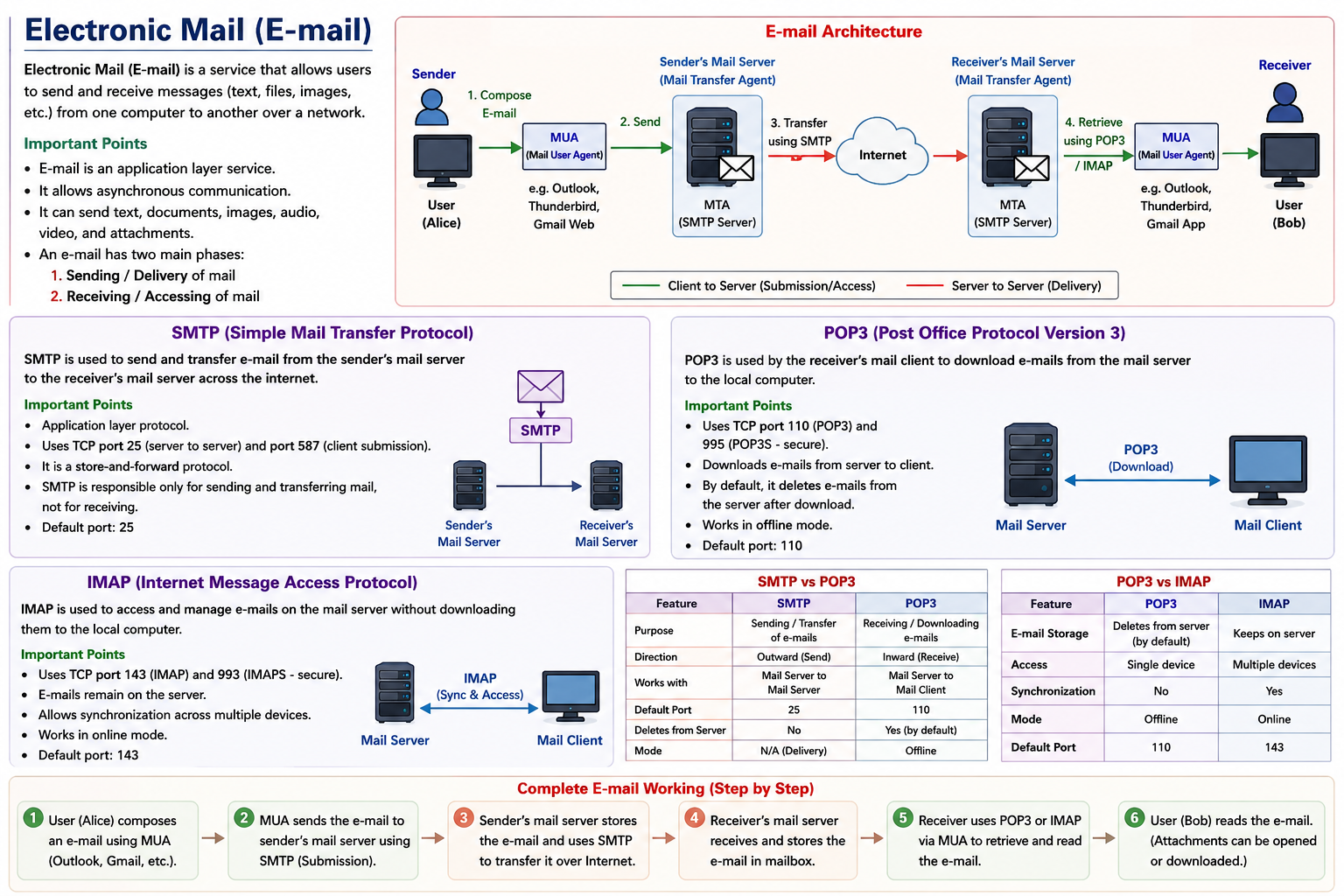
E-mail Architecture is the structure of the e-mail system that shows how an e-mail travels from the sender to the receiver using different software components and mail servers.
Important Points
The e-mail system follows the store-and-forward approach.
An e-mail is first stored on a mail server before being delivered to the receiver.
Different protocols are used for sending and receiving e-mails.
The main components are:
Mail User Agent (MUA)
Mail Transfer Agent (MTA)
Mailbox
Mail Server
Mail User Agent (MUA)
A Mail User Agent (MUA) is an application that allows users to compose, send, receive, and manage e-mails.
Examples
Gmail
Outlook
Thunderbird
Mail Transfer Agent (MTA)
A Mail Transfer Agent (MTA) is software that transfers e-mails from the sender's mail server to the receiver's mail server using SMTP.
Examples
Postfix
Sendmail
Microsoft Exchange
Mail Server
A Mail Server is a computer that stores, sends, receives, and manages e-mails for users.
Example
Google's Gmail Server stores and manages Gmail accounts.
Mailbox
A Mailbox is the storage area on the mail server where incoming e-mails are kept until the user reads or downloads them.
Example
When someone sends you an e-mail, it remains in your Gmail Inbox (mailbox) until you open it.
E-mail Architecture Diagram
                 Compose Mail
                      │
                      ▼
        +---------------------------+
        |  Mail User Agent (MUA)    |
        | (Gmail / Outlook / etc.)  |
        +---------------------------+
                      │
                SMTP (Send)
                      │
                      ▼
        +---------------------------+
        |     Sender Mail Server    |
        |          (MTA)            |
        +---------------------------+
                      │
                 Internet
                      │
                      ▼
        +---------------------------+
        |   Receiver Mail Server    |
        |          (MTA)            |
        +---------------------------+
                      │
             Stored in Mailbox
                      │
               POP3 / IMAP
                      │
                      ▼
        +---------------------------+
        |  Mail User Agent (MUA)    |
        |     Receiver Reads Mail   |
        +---------------------------+
Example
Suppose Rahul sends an e-mail to Aman.
Rahul writes the e-mail using Gmail (MUA).
Gmail sends the e-mail to the Sender Mail Server using SMTP.
The Sender Mail Server transfers the e-mail over the Internet to the Receiver Mail Server.
The Receiver Mail Server stores the e-mail in Aman's Mailbox.
Aman opens Gmail, and the e-mail is retrieved using POP3 or IMAP.
SMTP (Simple Mail Transfer Protocol)
SMTP (Simple Mail Transfer Protocol) is an Application Layer protocol used to send and transfer e-mails from the sender to the receiver's mail server over a TCP/IP network. It uses TCP Port 25 for server-to-server communication.
SMTP is the standard protocol used to send emails from a client to a mail server and to transfer emails between mail servers. SMTP uses TCP port 25. It is a push protocol that only handles outgoing mail - it cannot be used to retrieve or download emails.
Key Features of SMTP
• Uses TCP port 25 (also 587 for secure submission)
• Push protocol - used only for sending/forwarding emails
• Transfers email from Mail User Agent (MUA) to Mail Transfer Agent (MTA)
• Also transfers emails between MTAs (server-to-server)
• Uses simple text-based commands
• SMTPS (SMTP Secure) uses port 465 with SSL/TLS encryption
Important Points
SMTP stands for Simple Mail Transfer Protocol.
It is used only for sending e-mails, not for receiving them.
It is a push protocol, which means it pushes e-mails from the sender to the mail server.
It uses the store-and-forward technique.
It uses TCP for reliable communication.
Default port:
25 → Server-to-Server communication
587 → Secure mail submission by clients
465 → SMTP over SSL/TLS (legacy but still used)
How SMTP Works
The sender composes an e-mail using a Mail User Agent (MUA), such as Gmail or Outlook.
The MUA sends the e-mail to the sender's Mail Server using SMTP.
The sender's Mail Server transfers the e-mail to the receiver's Mail Server using SMTP.
The receiver's Mail Server stores the e-mail in the receiver's Mailbox.
The receiver later retrieves the e-mail using POP3 or IMAP.
SMTP Working Diagram
Sender
   │
   ▼
Mail User Agent (Gmail)
   │
SMTP
   │
   ▼
Sender Mail Server
   │
SMTP
   │
   ▼
Receiver Mail Server
   │
Stored in Mailbox
   │
POP3 / IMAP
   │
   ▼
Receiver
Example
Suppose Rahul sends an e-mail to Aman.
Rahul writes the e-mail in Gmail.
Gmail sends it to Google's Mail Server using SMTP.
Google's Mail Server transfers the e-mail to Aman's Mail Server using SMTP.
The e-mail is stored in Aman's mailbox.
Aman opens Gmail and reads the e-mail using POP3 or IMAP.
Advantages
Reliable because it uses TCP.
Supports sending text and file attachments.
Can transfer e-mails between different mail servers.
Widely supported by all e-mail services.
Limitations
Cannot retrieve e-mails.
Does not encrypt data by itself; security is provided using TLS/SSL.
Depends on POP3 or IMAP for reading received e-mails.
SMTP Commands
SMTP Command | Purpose |
HELO / EHLO | Client introduces itself to the SMTP server |
MAIL FROM | Specifies the sender's email address |
RCPT TO | Specifies the recipient's email address |
DATA | Begins the actual email body content |
QUIT | Closes the connection to the SMTP server |
RSET | Resets the current mail transaction |
VRFY | Verifies if a given email address exists on the server |
SMTP Email Sending Process
1. User composes email in MUA (e.g., Gmail) and clicks Send
2. MUA connects to the sender's SMTP server (port 25 or 587)
3. MUA authenticates with the SMTP server using credentials
4. MUA sends MAIL FROM (sender) and RCPT TO (recipient) commands
5. Email content is sent using DATA command
6. Sender's SMTP server looks up recipient's MX record via DNS
7. Sender's SMTP server connects to recipient's SMTP server and delivers the email
8. Email is stored in recipient's mailbox on the server