Operating System Unit 1 Notes | BEU B.Tech CSE
Complete Operating System Unit 1 notes for B.Tech CSE with simple explanations, diagrams, OS structures, types, system calls, and revision sheet. Perfect for AKU/BEU syllabus.

BEU CSE 3rd semester new syllabus 2025
Unit-1.Introduction: Concept of Operating Systems, Generations of Operating systems, Types of Operating Systems, OS Services, System Calls, Structure of an OSLayered, Monolithic, Microkernel Operating Systems, Concept of Virtual Machine. Case study on UNIX and WINDOWS Operating System
Concept of Operating System
An Operating System (OS) is a system software that works as a manager between the user, the hardware, and the applications. It controls how programs run, how files are stored, and how devices work, so the computer becomes easy to use.
An Operating System is a system software that manages computer hardware, provides an environment for application programs to run, handles resources such as CPU, memory, storage, and I/O devices, and offers essential services like process management, file management, security, and communication.
It manages all hardware resources like CPU, RAM, disk, and input/output devices.
It controls how programs are loaded, executed, paused, or stopped.
It handles memory allocation and prevents one program from using another program’s memory.
It manages files, folders, and data stored on the system.
It provides security by controlling access to data and resources.
It coordinates communication between hardware and software.
It provides a user interface such as GUI or command-line.
It offers system services required by applications.
It improves system efficiency by scheduling tasks properly.
It prevents errors and protects hardware from damage.
Example: Windows, Linux, macOS, UNIX, Android, iOS.
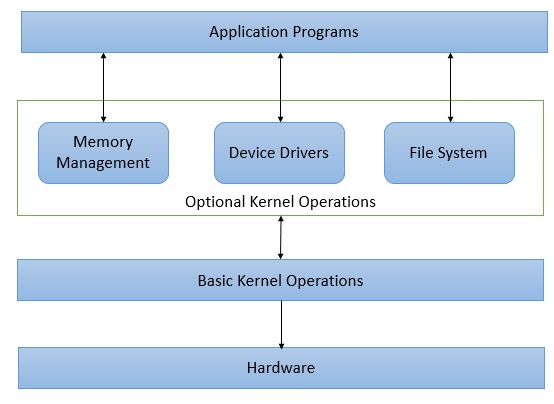
Features of Operating System
It manages all hardware resources like CPU, memory, and I/O devices.
It provides a simple environment where programs can run without worrying about hardware details.
It allows multitasking so multiple programs can run at the same time.
It handles memory allocation and protects one program from accessing another program’s data.
It manages files and directories for storing, organizing, and retrieving data.
It provides security by controlling user access, permissions, and data protection.
It supports communication between processes and applications.
It handles device management using drivers so different devices can work smoothly.
It schedules tasks efficiently to improve system performance.
It provides a user interface like GUI or command-line to interact with the computer.
Difference Between Operating System and Application Software
Operating System | Application Software |
|---|---|
It manages hardware resources and controls the overall working of the computer. | It helps users perform specific tasks like editing documents, watching videos, or browsing the internet. |
It acts as a bridge between the user, hardware, and applications. | It runs on top of the operating system and depends on it to function. |
It starts running as soon as the computer is powered on. | It starts only when the user opens it manually. |
It provides essential system services like memory management, process management, file handling, and device control. | It uses the services provided by the OS to complete user tasks. |
Examples: Windows, Linux, UNIX, macOS, Android, iOS. | Examples: MS Word, Chrome, VLC, Photoshop, WhatsApp. |
Generations of Operating Systems
1. First Generation OS (1940s–1950s): Vacuum Tube & Punch Card Era
There was no real operating system in this generation.
Programs were entered using punch cards and paper tapes.
Computers worked in batch mode, one job at a time.
Users had to interact directly with hardware technicians.
No concept of multiprogramming, scheduling, or resource management.
Execution was slow and error-prone.
Example: No full OS existed, but early systems like ENIAC and UNIVAC used simple loaders.
2. Second Generation OS (1950s–1960s): Batch Operating Systems
Introduction of transistors increased speed and reliability.
Actual Batch Operating Systems were developed.
Jobs were collected in batches and executed automatically one after another.
Reduced manual work since OS handled job sequencing.
Still no interaction between user and system during execution.
No multiprogramming or time-sharing.
Examples:
IBM 7094 batch system, FMS (Fortran Monitor System).
3. Third Generation OS (1960s–1970s): Multiprogramming & Time-Sharing
Use of integrated circuits (ICs) improved hardware greatly.
Introduction of Multiprogramming OS where multiple programs stay in memory at the same time.
Time-sharing systems allowed many users to interact with the system simultaneously.
CPU utilization increased because CPU never stayed idle.
Concepts like scheduling, memory management, and file systems became mature.
Examples:
UNIX (early versions), MULTICS, IBM OS/360.
4. Fourth Generation OS (1980s–Present): Personal Computers & GUI
Microprocessors made computers cheap and personal.
Introduction of GUI-based operating systems.
Support for networking, internet, and distributed systems.
Strong security, multimedia, and user-friendly features.
OS became more stable with features like multitasking, virtual memory, and device drivers.
Examples:
Windows (all versions), macOS, Linux distributions, Android, iOS.
5. Fifth Generation OS (Present & Future): Intelligent & Cloud-based OS
Focus on AI, machine learning, IoT, and cloud computing.
Support for voice assistants, automation, and smart devices.
Heavy use of virtualization, containers, and cloud platforms.
More advanced security, real-time performance, and distributed architecture.
Examples:
Google Fuchsia OS, Cloud OS, advanced Android/iOS versions, Smart home OS, AI-driven OS research systems.
Types of Operating Systems
An operating system can be classified based on how it manages tasks, users, processes, and resources. Each type is designed to solve a specific need such as multitasking, real-time performance, or multi-user access.
Types of Operating Systems
Batch Operating System
Time-Sharing Operating System
Distributed Operating System
Network Operating System
Multiprogramming Operating System
Multitasking Operating System
Multiprocessing Operating System
Real-Time Operating System (RTOS)
Mobile Operating System
Embedded Operating System
Batch Operating System
A batch operating system is an operating system where similar jobs are collected together in groups (batches) and executed automatically one after another without any user interaction during execution.
It collects many jobs from users and stores them in the job queue.
It reduces manual work because the operator does not need to load each job individually.
It improves overall system efficiency by running jobs in batches.
It minimizes idle time of CPU because jobs are already prepared in the queue.
It is suitable for long, repetitive, and offline tasks like payroll, bill generation, and data processing.
It does not allow users to interact with the job while it is running.
It requires correct and complete job information before execution, otherwise errors cannot be corrected during run time.
It uses job scheduling to decide which job runs first.
It uses spooling to manage input and output operations for faster processing.
It is commonly used in early large mainframe systems.
How Batch Operating System Works
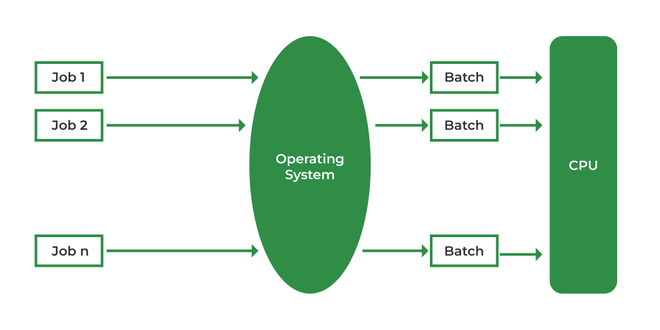
Users submit their jobs to the operator.
The operator groups similar jobs together into a batch.
The batch is loaded into the system’s job queue.
The batch operating system starts executing the jobs sequentially.
Jobs run without user interaction.
Output is produced after all jobs in the batch are completed.
1. Job Submission
Users do not run programs directly on the computer.
Instead, they prepare their programs, input data, and required instructions and submit them to a computer operator.
In old mainframes, this was done using punch cards; in modern systems, it is done through job submission forms or files.
The operator collects all submitted jobs and keeps them together for processing.
2. Job Grouping (Batch Formation)
The operator examines all submitted jobs and groups similar types of jobs into one batch.
For example, all payroll jobs go in one batch, all bill-processing jobs go in another batch.
Grouping helps the OS execute jobs efficiently because similar jobs need similar system resources.
3. Job Queue Creation
The batch of jobs is sent to the system and stored inside a job queue.
The job queue is a waiting area inside the operating system where jobs stay until the CPU selects them for execution.
The queue ensures the system always has jobs ready when the CPU becomes free.
4. Job Scheduling
The batch OS uses a job scheduler to decide the order in which jobs will run.
The scheduler selects the next job based on scheduling rules such as first-come-first-served, priority, or job length.
Scheduling makes sure that the CPU time is used efficiently and without long idle gaps.
5. Job Execution
Once a job is selected, the operating system loads it into memory and starts execution automatically.
There is no user interaction during execution, meaning the user cannot give new input or fix errors while the job is running.
The CPU continues executing jobs one by one until the entire batch is finished.
6. Spooling and I/O Handling
Batch OS uses spooling to speed up input and output.
Spooling stores input jobs on disk and sends output to the printer or display when ready.
This keeps the CPU free while slow I/O devices work in the background.
7. Output Collection
When all jobs in the batch finish execution, the OS stores their outputs.
The operator collects all outputs and hands them back to the respective users.
Users check results only after the batch is completely processed.
Working Diagram
Advantages of Batch Operating System
It reduces CPU idle time because jobs are always ready in the queue.
It improves system efficiency by grouping similar jobs together.
It removes manual intervention, so the operator does not load each job one by one.
It handles large volumes of data and repetitive tasks efficiently.
It supports spooling, which speeds up input/output operations.
It saves time because users do not wait for their turn to run jobs directly.
It works well for long offline jobs like payroll, billing, and report generation.
Disadvantages of Batch Operating System
It has no interaction with the user during job execution.
It becomes difficult to locate errors, because mistakes are known only after the batch is completed.
It requires accurate and complete job information before execution.
It may lead to long turnaround time, especially when the queue is large.
It needs special hardware and staff to operate in traditional mainframe setups.
It does not suit short or interactive tasks where quick response is required.
It can suffer from poor CPU utilization if job grouping is not done properly.
Time-Sharing Operating System
A time-sharing operating system allows many users or programs to use the computer at the same time by giving each one a very small time slot so they feel the system is responding instantly.
It divides CPU time into very small slices and gives each user or program a turn.
It allows many users to work together on the same system without waiting too long.
It gives quick response because no program holds the CPU for a long time.
It supports interactive work like typing commands, editing files, or running small programs.
It prevents one user from blocking the system for others.
It switches between tasks so fast that every user feels the system is working only for them.
It avoids CPU idle time because when one task waits for input, the system moves to the next task.
It needs proper scheduling to decide which task gets the next time slice.
It is commonly used in servers, shared computers, and multi-user systems.
Example: UNIX time-sharing systems, Linux servers, mainframe terminals.
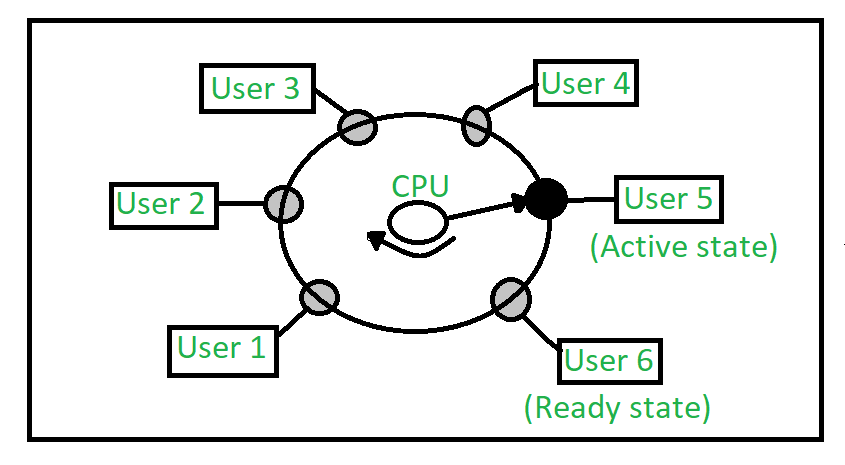
How Time-Sharing Operating System Works
1. Many tasks arrive at the same time
Users or programs submit their tasks to the system.
The operating system puts all these tasks in a ready queue.
2. Each task is given a small time slice (quantum)
The CPU gives a very small amount of time to the first task.
When the given time finishes, the OS immediately switches to the next task.
This switching is extremely fast (milliseconds), so users do not feel delays.
3. Tasks keep rotating again and again
After all tasks get their turn, the OS again starts from the first task.
This rotation continues until every task is completed.
This creates the feeling that many tasks are running at the same time.
4. Immediate response to user
Because each task gets time frequently, users get quick responses.
For example, typing a command, opening a file, or running a small program feels instant.
5. CPU is never idle
If one task is waiting for user input or data, the OS skips it and gives time to another task.
This keeps the CPU busy and increases efficiency.
Real-Life Example to Understand Time-Sharing
Imagine a teacher moving around a classroom where many students have doubts.
The teacher spends a few seconds with the first student.
Then quickly moves to the second, then the third, then the fourth, and so on.
After finishing one round, the teacher comes back to the first student again.
Every student gets a small time slice.
All students feel the teacher is giving attention to them regularly.
This is exactly how a time-sharing OS works:
Teacher → CPU
Students → Tasks/Users
Few seconds → Time slice (quantum)
Moving to next student → Context switching
Everyone gets a fair chance, and the work moves smoothly.
Another Example: WhatsApp, YouTube, and Music Running Together
When you:
reply to a WhatsApp message
watch a YouTube video
listen to music in the background
Your phone switches between apps so fast that it feels like everything is happening at the same time.
This is because the OS gives each app a small time slice and keeps rotating between them.
Advantages of Time-Sharing Operating System
Quick Response: Users get fast replies because every task gets a small time slice repeatedly, so the system feels instant.
Fair Sharing of CPU: All tasks get equal and fair time with the CPU, so no one user or program blocks others.
Better Use of CPU: The CPU never stays idle because when one task waits for input, the OS immediately shifts to another task.
Good for Multi-User Systems: Many users can work on the same computer at the same time without disturbing each other.
Supports Interactive Work: It is perfect for tasks like typing commands, editing files, browsing, and software development where quick response is needed.
Good System Efficiency: Because switching happens in milliseconds, the system handles many tasks smoothly and efficiently.
Disadvantages of Time-Sharing Operating System
High Chance of Overload: If too many users or tasks enter at the same time, the system may slow down or become overloaded.
More Complex to Manage: The OS must switch tasks very quickly and manage CPU time properly, which makes it more complex.
Security Problems: Since many users share the system at the same time, there is a higher risk of data leakage or unauthorized access.
More Hardware Requirement: It needs fast processors, good memory, and quick input/output devices to handle multiple tasks smoothly.
Busy System Can Cause Delay: When many tasks are waiting, each user may get less CPU time, causing slower responses.
Distributed Operating System
A distributed operating system is an operating system that connects many independent computers and makes them work together as if they are one single system. All connected machines share their resources—like files, memory, and processing power—so tasks can be completed faster and more efficiently.
It links multiple computers through a network and manages them as one combined system.
It allows tasks to be divided and executed on different machines at the same time.
It hides the complexity of multiple systems and gives the user a single-system experience.
It improves performance because work is shared across many computers.
It increases reliability since if one machine fails, others can continue the task.
It supports resource sharing such as files, databases, printers, and storage.
It reduces the load on a single computer by distributing tasks across the network.
It is commonly used in cloud systems, cluster computing, and large-scale applications.
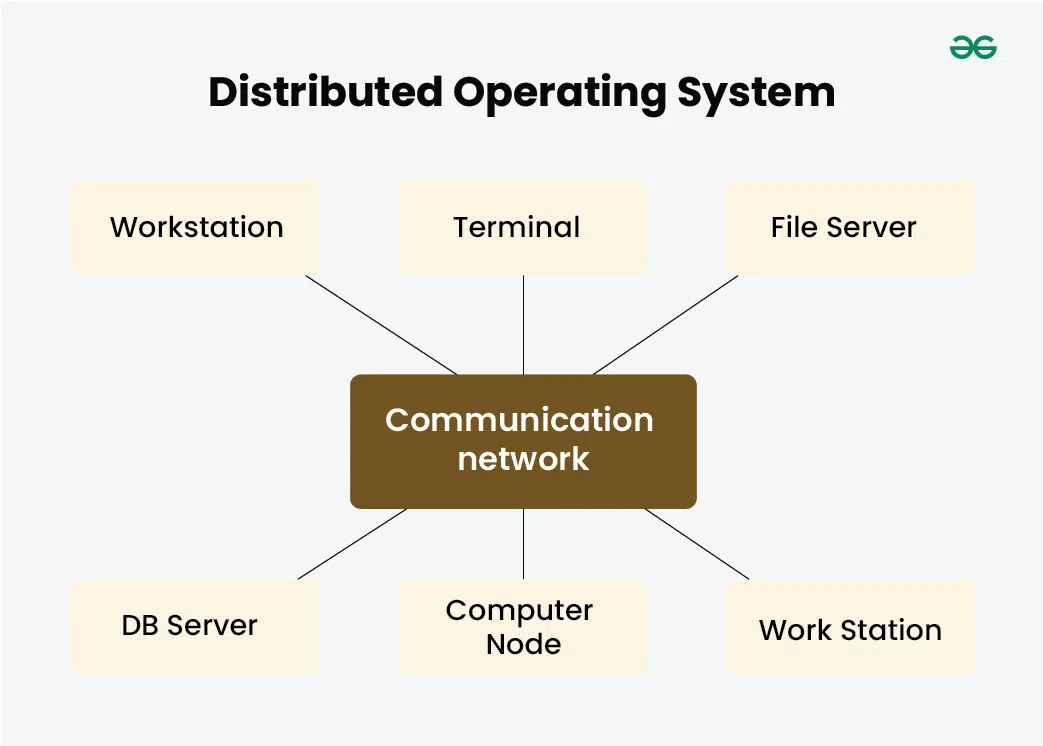

How a Distributed Operating System Works
1. Many computers are connected in a network
The distributed OS begins by connecting multiple computers (nodes) through a network.
These computers may be in the same room, same building, or even different locations.
Once connected, the OS treats them as one combined system.
2. The system identifies all available resources
Each computer shares information like:
how much CPU power it has
how much memory is free
what files or devices it can share
The OS collects this information and builds a resource list.
3. Tasks are divided into smaller parts
When a user runs a program, the distributed OS splits it into smaller tasks.
These tasks can be processed in parallel (at the same time).
The OS decides the best computer for each task depending on its load and speed.
4. Tasks are sent to different computers
The OS sends task A to computer 1, task B to computer 2, and so on.
This reduces workload on a single computer and increases speed.
The user does not know where the task is running; it looks like one system.
5. All computers work together and process tasks
Each computer works on the small task it received.
They compute, store, or process whatever part they were assigned.
The OS keeps checking their progress and handles failures if any machine stops responding.
6. Results are collected and combined
After finishing, each computer sends back its result to the main system.
The OS combines all results into one final output.
The user receives the final answer as if the entire work was done on a single computer.
7. Continuous monitoring and load balancing
The OS constantly checks which computer is free or overloaded.
It moves tasks to less busy computers to keep the work running smoothly.
If one computer fails, the OS shifts its tasks to others automatically.
Example: Food Delivery Team (Zomato/Swiggy Model)
Imagine you place a big food order for 10 items:
Instead of one delivery person picking all food from one place,
the platform assigns different items to different restaurants.Each restaurant prepares its item separately and sends it to the delivery hub.
The items are collected, packed together, and delivered to you as one final package.
This works like a distributed OS:
Restaurants → Different computers
Preparing food → Processing tasks
Packing together → Combining results
Delivery → Final output to the user
You get one package, but many kitchens worked behind the scenes.
Advantages of Distributed Operating System
Faster Work Completion: The system divides work across many computers, so tasks finish much faster than on a single machine.
Resource Sharing: Files, printers, storage, and processing power can be shared between computers, which saves cost and improves efficiency.
Better Reliability: If one computer fails, others continue the work. This reduces the chance of total system failure.
Scalability: More computers can be added anytime to increase power and storage without stopping the system.
Improved Performance: Tasks are executed in parallel on different machines, giving smooth and powerful performance.
Reduced Load on One Computer: Workload is distributed, so no single computer becomes overloaded.
User Feels Like a Single System: Even though many computers are involved, the user sees it as one simple system, which is easy to use.
Disadvantages of Distributed Operating System
Difficult to Set Up: Connecting many computers and making them work as one system requires planning and skilled setup.
High Cost: It needs multiple computers, networking devices, and maintenance, which can be expensive.
Security Issues: Data moves across the network, so hacking, data theft, or unauthorized access can be a risk.
Complex Troubleshooting: If something goes wrong, it can be hard to find which computer or connection caused the problem.
More Software Dependency: It depends on special software to coordinate tasks; if that software fails, the whole system suffers.
Network Problems Affect Work: If the network becomes slow or fails, task processing also slows down or stops.
Network Operating System
A network operating system is an operating system that manages and controls computers connected over a network. It allows computers to share files, printers, applications, and other resources while communicating with each other smoothly and securely.
It connects multiple computers so they can share data and devices easily.
It manages user accounts, passwords, and permissions in a network.
It provides services like file sharing, printer sharing, and remote access.
It allows users to log in from any computer within the network.
It monitors network traffic and maintains security.
It supports backup, recovery, and centralized control of all connected systems.
It is commonly used in offices, schools, and organizations where many computers work together.

How a Network Operating System Works
1. Many computers are connected to a network
The NOS begins by connecting computers through cables or Wi-Fi.
Each computer becomes a node in the network.
One computer is usually set as the server, and others act as clients.
2. The server manages user accounts and permissions
The NOS stores all usernames, passwords, and access rights on the server.
When a user logs in from any computer, the server checks their identity.
The server decides what files, folders, or devices the user is allowed to access.
3. Users log in and request shared resources
A user logs into their computer (client).
If the user wants to open a shared folder, use a printer, or access an application, the request is sent to the server.
4. The server provides files, printers, and applications
The NOS sends the requested data or access back to the user’s computer.
Users can open shared files, use network printers, and run programs stored on the server.
Every action is controlled by the server for security and proper management.
5. Communication happens between all computers
Computers share messages, files, data, and updates through the NOS.
The OS makes sure the data reaches the correct computer safely and quickly.
The network stays organized so multiple users can work together smoothly.
6. The NOS monitors the network
It checks network traffic and prevents overload.
It detects unauthorized access or suspicious activity.
It handles backups so data is stored safely.
It keeps logs of all network activity for tracking and security.
7. Server updates and maintains the whole network
NOS allows software updates, new user creation, password changes, and data backup from a central point.
This makes management easy for large organizations.
Example: School Computer Lab
In a school computer lab:
One main computer (server) stores all student accounts and files.
Students can sit at any computer (client) and log in with their username.
The server gives them access to their files, the shared printer, and shared software.
If a student prints something, the server sends the file to the printer.
The server controls everything—from logins to backups.
This is exactly how a Network Operating System works:
Server → Main controller
Clients → Student computers
Shared resources → Printer, files, applications
Advantages of Network Operating System
Easy Resource Sharing: Users can easily share files, printers, storage, and applications across the network, which saves time and cost.
Centralized Management: All users, passwords, permissions, and updates can be controlled from one main server, making management simple.
Better Security: The server controls who can access what, so the system provides strong protection for files and data.
Data Backup and Recovery: NOS supports automatic backups, so important data can be restored if something gets deleted or corrupted.
User Flexibility: Users can log in from any computer in the network and still access their files and settings.
Supports Communication: Computers can send messages, share data, and work together easily across the network.
Disadvantages of Network Operating System
High Setup Cost: It needs a server, network devices, and proper wiring or Wi-Fi setup, which can be expensive.
Server Dependency: If the main server stops working, many network services stop working too.
Needs Skilled Management: A trained administrator is needed to manage users, security, and network settings.
Security Risks: If the server is hacked or infected, the entire network can be affected.
Network Slowdowns: If many users access the server at the same time, the network can become slow or overloaded.
Multiprogramming Operating System
A multiprogramming operating system allows more than one program to stay in the computer’s memory at the same time. The CPU switches to another program whenever one program is waiting for input/output, so the CPU is always busy and no time is wasted.
It keeps multiple programs loaded in memory together.
When one program waits for input or output, the CPU immediately runs another program.
It increases CPU usage because the CPU never sits idle.
It reduces waiting time by switching between programs quickly.
It improves system efficiency, especially for long jobs.
It needs proper memory management and CPU scheduling to work smoothly.
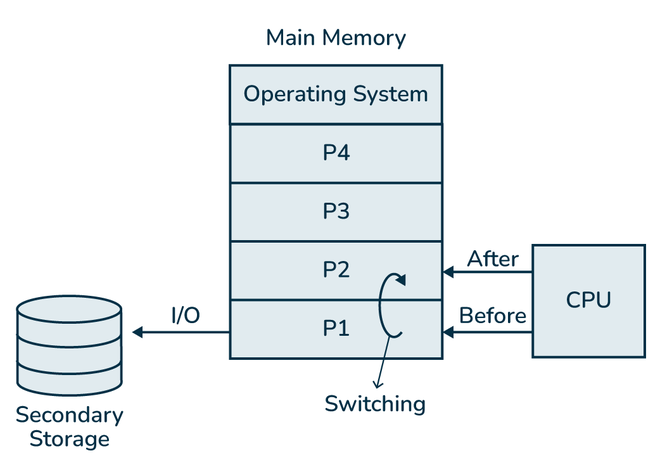
How a Multiprogramming Operating System Works
1. Several programs are loaded into memory
The OS loads multiple programs into the computer’s memory at the same time.
These programs stay ready to run whenever the CPU is free.
2. The CPU starts executing the first program
The CPU begins running the first program in the memory.
Everything works normally until the program needs some input/output (I/O) like keyboard input, file read, or printing.
3. When the first program waits, the CPU switches
If the program cannot continue without data, it becomes waiting.
Instead of wasting time, the CPU immediately switches to another program that is ready to run.
4. Programs keep switching based on readiness
When the CPU finishes one task or a program waits for I/O, it moves to another ready program.
This quick switching keeps the CPU busy all the time.
5. The OS manages memory and CPU scheduling
The OS uses memory management to store multiple programs safely.
It uses scheduling to decide which program runs next.
It ensures no program interferes with another program’s memory.
6. Programs finish one by one
As each program completes its work, it leaves memory.
The OS loads new programs to keep the CPU working continuously.
Example: A Chef Cooking Many Dishes
Imagine a chef cooking 4 dishes at the same time:
Dish 1 is boiling (waiting).
Dish 2 needs cutting (CPU running).
Dish 3 is baking (waiting).
Dish 4 needs stirring (CPU running).
The chef:
starts Dish 1
when it needs to boil, moves to Dish 2
when Dish 2 needs baking, moves to Dish 4
when Dish 4 needs to rest, moves back to Dish 1
Chef = CPU
Dishes = Programs
Waiting state = I/O wait
Switching dishes = CPU scheduling
The chef is never idle—just like the CPU in a multiprogramming OS.
Advantages of Multiprogramming Operating System
Better CPU Usage: The CPU never sits idle because when one program is waiting for input/output, another program runs immediately.
More Work Done at the Same Time: Since many programs stay in memory together, the system completes more tasks in less time.
Reduced Waiting Time: Users do not have to wait long because programs keep switching whenever one gets blocked.
Good for Long Jobs: Large or slow programs do not stop the computer; the OS moves to another program while they wait.
Higher System Efficiency: Memory, CPU, and other resources are used more effectively, improving overall performance.
Disadvantages of Multiprogramming Operating System
Complex Memory Management: Storing many programs in memory at once is difficult and needs strong memory control.
Chances of Program Interference: If there is an error in memory management, one program may disturb another program’s memory.
Needs Large Memory: Multiprogramming works well only if the computer has enough RAM to store multiple programs together.
More CPU Scheduling Load: The OS has to constantly decide which program runs next, making scheduling complicated.
Risk of Deadlock: When several programs try to use the same resources, the system may get stuck (deadlock) if not managed properly.
Multitasking Operating System
A multitasking operating system allows a computer to run many tasks or programs at the same time by switching between them so quickly that it feels like they are running together. Each program gets a small amount of CPU time, and the OS moves between tasks whenever needed.
It allows several applications to run at once, such as music playing while browsing the web.
It divides CPU time among all active tasks.
It switches tasks very quickly, giving the feeling of parallel execution.
It improves user experience because many activities happen smoothly.
It keeps background tasks running while the user works on the main task.
It prevents one task from blocking the whole system.

How a Multitasking Operating System Works
1. The user opens many programs
The user may open apps like Chrome, music player, WhatsApp desktop, Word, etc.
All these programs stay active at the same time.
2. The OS keeps all programs in memory
The operating system stores each running program in RAM.
Each program has its own space so they do not disturb each other.
3. CPU gives small time to each program
The CPU cannot run all programs at the exact same moment.
So the OS gives each program a small time slice.
After the time slice ends, the OS quickly switches to another program.
4. Switching happens very fast
The switching is done in milliseconds.
Because it is so fast, the user feels like all programs are running together.
5. Background and foreground tasks work together
The program you use (foreground) gets more time.
Background apps (music player, downloads, updates) get time when CPU is free.
6. If one program becomes slow, others still run
If Chrome is loading a heavy page, the OS immediately gives time to other apps.
This prevents the whole system from freezing.
7. OS monitors and manages resources
The OS keeps checking CPU usage, memory usage, and task priority.
It makes sure no single program takes over the whole system.
Example: A person doing many small tasks quickly
Imagine a person:
Stirring tea
Checking phone messages
Talking on a call
Watching the stove
They switch tasks very fast.
Even though they do one thing at a time, it looks like they are doing everything together.
This is exactly how multitasking OS works.
Advantages of Multitasking Operating System
Better User Experience: Users can do many things at the same time without closing any program.
Efficient Use of CPU: The CPU stays busy because it keeps switching between tasks.
Smooth Background Work: Downloads, updates, and music keep running while the user works in other apps.
Reduced Waiting Time: If one program is slow, the OS moves to another program, so the user never feels stuck.
Easy Switching Between Apps: The user can change apps instantly without restarting them.
Disadvantages of Multitasking Operating System
High Memory Usage: Many programs in memory at the same time need more RAM.
System May Slow Down: If too many programs run together, the system may become slow.
Chance of Program Crashes: If one program uses too much memory or CPU, other programs may stop responding.
More Security Risks: Running many apps increases the risk of malware or unauthorized programs running in the background.
Complex Management: The OS must handle many tasks, schedule CPU time, and protect memory, which makes it more complex.
Multiprocessing Operating System
A multiprocessing operating system is an operating system that uses two or more CPUs (processors) at the same time to run multiple tasks faster. All processors share the same memory and work together under one operating system.
It has more than one CPU working under a single OS.
It executes many tasks at the same time using different processors.
It increases system speed because work is divided across processors.
It improves performance for heavy programs like simulations, servers, gaming, and scientific work.
It needs proper coordination so processors do not clash with each other.
It uses load balancing to share the work equally among CPUs.

How a Multiprocessing Operating System Works
1. The system has two or more CPUs
A multiprocessing OS runs on a computer that has multiple processors.
All processors are connected to the same memory and work under one OS.
2. The OS checks how many tasks are ready
When programs or tasks are waiting to run, the OS looks at the list of ready tasks.
It decides which tasks can run in parallel.
3. Tasks are divided among processors
The OS gives one task to CPU1, another task to CPU2, another to CPU3, and so on.
This division is called load sharing.
It ensures no processor stays idle.
4. All processors work at the same time
CPU1, CPU2, CPU3… all run tasks together.
This increases the overall speed because work is done in parallel.
5. The OS manages memory and communication
The OS keeps tasks separate so they do not overwrite each other’s memory.
It also manages communication when tasks need to share data.
6. If one processor is free, the OS gives it new work
When a CPU finishes its task, the OS gives it the next available task.
This keeps all CPUs busy and improves performance.
7. If one processor fails, others continue
In many multiprocessing systems, if one CPU stops working, the other CPUs keep running tasks.
This provides better reliability.
Example: A kitchen with many cooks
Imagine a kitchen where:
There are 4 cooks (CPUs).
There are many dishes (tasks) to prepare.
How they work:
Each cook picks one dish.
They prepare dishes at the same time.
When a cook finishes one dish, they immediately start another.
If one cook gets sick, the other 3 continue cooking.
This is exactly how a multiprocessing OS works:
Cooks → CPUs
Dishes → Tasks
Kitchen → Operating System
Shared ingredients → Shared memory
More cooks = faster work.
More CPUs = faster processing.
Advantages of Multiprocessing Operating System
Faster Performance: Several CPUs work together, so heavy tasks finish much faster.
True Parallel Processing: Tasks run at the same time, not just switching like multitasking.
Better System Reliability: If one CPU fails, the system can continue with the remaining CPUs.
Efficient Resource Use: All processors share the workload, reducing the chance of any CPU sitting idle.
Handles Heavy Work easily: Best for servers, scientific work, simulations, gaming, and large applications.
Disadvantages of Multiprocessing Operating System
High Cost: Systems with multiple processors are expensive to build and maintain.
Complex Design: It needs special hardware and a complex OS to manage multiple CPUs.
More Power and Cooling: Multiple CPUs use more electricity and produce more heat.
Not All Programs Support Multiprocessing: Some software cannot use multiple CPUs fully, so the benefit is limited.
Difficult Troubleshooting: If something goes wrong, finding the cause across several CPUs is harder.
Real-Time Operating System (RTOS)
A real-time operating system is an operating system that gives immediate and guaranteed response to tasks. It completes important tasks within a fixed time limit, called a deadline, so it is used in systems where even a small delay can cause failure.
It provides quick and predictable responses.
It completes tasks within strict timing limits.
It is used in devices that need fast and accurate control.
It ensures that high-priority tasks run immediately.
It avoids delays by using special scheduling methods.
It is common in medical machines, robots, cars, and industrial systems.

Types of Real-Time Operating Systems
1. Hard Real-Time Operating System
Used where timing is extremely strict and the task must be completed exactly on time.
Even the smallest delay is unacceptable because it can cause loss of life or system failure.
These systems must always meet the deadline.
Virtual memory is rarely used because it can slow down the system.
Examples:
Airbags in cars
Automatic parachute system
Medical life-support machines
Missile launch systems
2. Soft Real-Time Operating System
Used where timing is important but not as strict as hard real-time.
A small delay is allowed and does not cause system failure.
The system tries to meet deadlines most of the time.
Suitable for multimedia, entertainment, and communication systems.
Examples:
Video streaming
Online gaming
Virtual reality
Mobile operating systems with real-time features
How a Real-Time Operating System (RTOS) Works
1. The system receives input from sensors or devices
RTOS constantly listens to sensors, controllers, or external signals.
These inputs can be temperature readings, speed measurements, pressure changes, motion detection, etc.
As soon as an input arrives, RTOS must respond immediately.
2. Tasks are assigned priorities
RTOS checks which tasks are important and must run first.
Safety-critical or urgent tasks always get the highest priority.
Less important tasks get lower priority.
3. Highest-priority task runs immediately
RTOS does not wait.
It immediately gives the CPU to the highest-priority task.
All lower-priority tasks are paused until the important task is finished.
4. Strict timing (deadline) is followed
Every task has a deadline — a fixed time limit to finish.
RTOS ensures the task completes before the deadline.
If the deadline is missed, the system may fail (especially in hard real-time).
5. Fast task switching
RTOS switches between tasks extremely fast.
This makes sure no time is wasted.
Switching is predictable and consistent.
6. Minimal delays
RTOS avoids anything that may cause delay such as long functions, heavy memory usage, or waiting for user input.
It uses lightweight processes and small task queues.
7. Continuous loop (Always running)
RTOS works like an infinite loop.
It keeps checking for new inputs, executing tasks, and updating outputs.
This loop runs all the time without stopping.
Example: Airbag System in a Car
A sensor detects a car crash.
It sends a signal instantly to the RTOS.
RTOS marks “deploy airbag” as highest priority.
All other tasks (music, display, engine monitoring) are paused.
The RTOS triggers the airbag within milliseconds (deadline).
A delay of even 0.01 seconds can risk the driver's life.
After deployment, RTOS returns to normal tasks.
This shows how RTOS makes split-second decisions.
Another Simple Example: Heartbeat Monitor Machine
The machine reads heartbeats constantly.
If heartbeat becomes irregular, RTOS immediately alerts doctors.
No delay is allowed because timing is life-critical.
Advantages of Real-Time Operating System (RTOS)
Fast and Predictable Response: RTOS responds instantly to inputs, making it perfect for systems where timing is very important.
Completes Tasks Before Deadline: Every critical task is finished within a fixed time limit, which keeps the system safe and reliable.
High Priority Task Handling: RTOS always runs the most important task first, so urgent work is never delayed.
Stable and Consistent Performance: It does not slow down or behave unpredictably because it avoids long delays and heavy background work.
Ideal for Safety-Critical Systems: Used in life-saving machines such as airbags, medical devices, and industrial robots where delays are dangerous.
Quick Task Switching: Switches between tasks very fast, so the system stays active and responsive.
Disadvantages of Real-Time Operating System (RTOS)
High Cost to Build: RTOS requires special hardware and careful design, which makes it more expensive than normal OS.
Limited Memory and Storage: It uses small, lightweight processes, so programs cannot be large or complex.
Difficult to Design and Maintain: Developing RTOS applications requires deep knowledge of timing and hardware, which can be challenging.
No Support for Heavy Background Tasks: RTOS avoids delays, so features like video editing, heavy multitasking, or large applications are not suitable.
Small Delays Can Cause Failure: If timing is missed, the entire system may fail—especially in hard real-time systems.
Less Flexibility: Focus is mainly on timing, not on user-friendly features or multimedia support.
Mobile Operating System
A mobile operating system is an operating system designed to run on smartphones, tablets, and other handheld devices. It manages the touch screen, mobile apps, battery, sensors, network, and all hardware inside the device so the phone works smoothly.
It is built for touch-based control and small screens.
It manages calling, messaging, internet, and app functions.
It handles mobile hardware like camera, GPS, Bluetooth, Wi-Fi, fingerprint, and sensors.
It saves battery by controlling background apps and power usage.
It supports app stores where users can download and install apps easily.
It manages mobile security features like lock screen, permissions, and encryption.
It is optimized for lightweight and fast performance.
Examples: Android, iOS, HarmonyOS.
Embedded Operating System
An embedded operating system is an operating system designed to run on small, special-purpose devices that perform one dedicated function. These devices have limited memory, limited processing power, and must work reliably for long periods.
It runs on devices like microwave ovens, washing machines, smart watches, traffic lights, medical equipment, routers, and sensors.
It is built for a single specific task, not general multitasking.
It uses very small memory and simple programs because the device hardware is limited.
It works continuously and must be stable and reliable.
It has fast startup because it loads only the essential components.
It controls hardware directly to ensure accurate and timely actions.
It is used in systems where safety, accuracy, and long-term running are important.
Examples:
Embedded Linux, VxWorks, TinyOS, RTOS-based controllers in appliances.
OS Services
OS services are the basic functions an operating system provides so users and programs can work smoothly. These services help manage files, run programs, handle memory, control devices, and keep the system safe.
It allows users to run programs and controls their execution smoothly.
It manages input and output operations such as keyboard, mouse, printer, and display.
It provides file management, including creating, deleting, reading, writing, and organizing files and folders.
It handles memory management by giving memory to programs and taking it back after use.
It provides process management, which includes creating processes, scheduling them, and stopping them.
It controls device management and allows programs to use hardware safely through device drivers.
It offers error detection and helps in reporting and recovering from errors.
It provides security, which includes user login, permissions, password protection, and access control.
It offers communication between processes so they can share data.
It provides system monitoring, which helps track resource usage and system performance.
It gives a user interface, such as GUI or command-line, to interact with the computer.
Services of Operating System
Program Execution
Input/Output Operations
Communication Between Processes
File Management
Memory Management
Process Management
Security and Privacy
Resource Management
User Interface
Networking
Error Handling
Time Management
Program Execution
The operating system loads a program into memory and runs it.
It decides the order in which programs will run using scheduling methods like FCFS or SJF.
It ensures each program gets the required resources and prevents two programs from creating conflicts.
The OS makes sure system and user programs run smoothly from start to finish.
Input/Output Operations
The OS manages all input devices (keyboard, mouse, scanner) and output devices (screen, printer).
It communicates with these devices using device drivers, which act as helpers between hardware and software.
It provides access to these devices whenever a program needs them and ensures everything works in proper sync.
Communication Between Processes
The OS manages how two or more processes share information.
It allows data transfer between processes running on the same computer or across a network.
This includes message passing, signals, shared memory, and data exchange that keeps programs connected.
File Management
The OS controls everything related to files: creating, deleting, reading, writing, and organizing them.
It decides file permissions such as read-only, read-write, or no access.
It chooses where and how data will be stored on devices like hard disk, SSD, or USB drives.
The OS keeps all files safe, structured, and easy to access.
Memory Management
Think of the OS as a team manager deciding whether a new player should be in the playing 11 or not.
Similarly, when a new program arrives, the OS checks if memory is available.
If yes, it decides how much memory the program needs and places it at a proper location.
This prevents any program from taking unnecessary memory or disturbing others.
Process Management
Imagine the kitchen stove as the CPU and the chef as the OS.
The chef (OS) decides how long each dish (program) should stay on the stove (CPU).
He makes sure no dish blocks the stove for too long, and every dish gets time to cook.
The OS schedules, starts, pauses, and stops programs so the whole system works smoothly.
Security and Privacy
Security:
The OS protects the computer from viruses, hackers, and unauthorized users.
It uses passwords, firewalls, and antivirus tools to keep the system safe.
Privacy:
The OS allows you to keep your personal information hidden, like locking your room.
Only authorized users can access certain files, apps, or data.
Resource Management
The OS decides how system resources—CPU time, memory, disk space, and devices—will be shared among programs.
It ensures all resources are used properly and no single process takes everything.
It also decides who gets what, and when, for smooth functioning.
User Interface
The OS provides the interface that lets the user interact with the computer.
CLI (Command-Line Interface): typed commands
GUI (Graphical User Interface): windows, icons, buttons, mouse
The OS reads your commands and performs the actions you request.
Networking
The OS manages network connections — Wi-Fi, LAN, mobile data, etc.
It handles sending and receiving data, connecting to the internet, and managing communication between multiple computers.
It keeps the network stable and secure.
Error Handling
The OS detects and reports errors in hardware or software.
It tries to fix the error so the system continues running safely.
It prevents errors from repeating and also avoids deadlocks.
It protects the system from bugs, failures, and external attacks.
Time Management
Think of a traffic signal as the OS and cars as programs.
The signal (OS) tells cars when to stop (blocked), wait (ready), or go (running).
After a fixed time, the signal changes so every side gets a turn.
Similarly, the OS gives CPU time to each program in a fair, controlled manner.
What Are User Mode and Kernel Mode?
User Mode and Kernel Mode are two CPU execution modes.
The CPU (processor) works in these two modes to control what level of power and access a running program gets.
They are types of execution levels in the CPU.
They decide what a program is allowed to do.
They are used for protection, security, and safe system operation.
So:
User Mode = low-privilege execution mode
Kernel Mode = high-privilege execution mode
These two modes ensure that normal applications cannot directly control hardware or damage the system.
User Mode
User Mode is the low-power, restricted mode where normal applications and user programs run.
In this mode, the program has limited permissions to protect the system from accidental damage or harmful actions.
Key Ideas of User Mode
The program cannot access hardware directly — it must request the OS using system calls.
The program cannot access all memory — only its own area in RAM.
The program cannot perform dangerous operations like changing system settings or talking directly to devices.
If the program crashes, the system still stays safe because the crash is limited to user mode.
Why User Mode Exists
User mode exists to protect the system:
Prevents apps from reading each other’s data.
Prevents apps from corrupting memory or damaging hardware.
Prevents viruses or faulty programs from taking full control.
Keeps the OS safe even if apps fail.
What Actually Runs in User Mode
Apps like Chrome, WhatsApp, VLC, MS Word, Games.
Background applications like music player, downloads, notifications.
User programs created by developers.
Scripting languages and tools like Python, Java programs, compilers.
What Programs Can Do in User Mode
They can:
Run instructions
Perform calculations
Request OS services
Use memory given by OS
Interact with UI (buttons, mouse, keyboard through OS)
They cannot:
Access hardware directly
Modify kernel memory
Load device drivers
Change CPU scheduling
Perform I/O without permission
Real-Life Example
User Mode is like being a visitor in a company:
You can enter the reception (applications area).
You cannot open boss’s office, server room, or control center.
You must ask an employee (system call) to access anything important.
Even if you make a mistake, the company stays safe.
Key Property
User Mode = Safe mode for running apps
Limited power, restricted access, cannot harm system.
Kernel Mode
Kernel Mode is the high-privilege execution mode of the CPU.
This mode gives the operating system full control over the computer or mobile device.
Key Ideas of Kernel Mode
The OS has full access to all hardware and all memory.
It can start, stop, or manage any program.
It can directly communicate with CPU, RAM, Disk, Camera, Sensors, etc.
Any mistake here can crash the entire system because there is no restriction.
Why Kernel Mode Exists
Kernel Mode exists so the OS can:
Control all hardware safely
Manage memory for all apps
Run device drivers
Handle system calls from user programs
Protect the system from security risks
Keep the phone/computer stable and functioning
What Runs in Kernel Mode
Operating System Kernel
Device Drivers (Camera driver, Wi-Fi driver, Display driver, etc.)
Interrupt handlers
Memory manager
CPU scheduler
File system manager
Real-Life Example
Kernel Mode is like the chief engineer of a building:
They have keys to every room
They can control the electrical system, water system, security system
If they make a mistake, the whole building is affected
They are trusted with full power
When and How User Mode Shifts to Kernel Mode
A program normally runs in User Mode, but whenever it needs something that only the OS can do, the CPU switches to Kernel Mode.
This switch happens through a system call.
Clear Steps of Mode Switching
1. App wants to do something restricted
For example:
open a file
use the camera
make a network request
read a contact
vibrate the phone
Apps cannot do these things directly.
2. App sends a System Call request
The app says:
“OS, please do this for me.”
3. CPU switches User Mode → Kernel Mode
This is called a mode switch.
Now the OS has full power to perform the task.
4. Kernel performs the task
Examples:
Camera driver turns on the camera sensor
File manager reads/writes to storage
Network manager sends data
Memory manager allocates new RAM
5. CPU switches Kernel Mode → User Mode
After completing the task, the CPU goes back to user mode and returns the result to the app.
This protects the system from errors and attacks.
Mobile Examples
Example 1: Opening the Camera in Instagram
You tap “open camera” inside Instagram
Instagram is in User Mode → cannot access camera hardware
It makes a system call to the OS
OS switches to Kernel Mode
Camera driver turns on the camera
OS returns control back to Instagram (User Mode)
So:
User Mode (Instagram) → System Call → Kernel Mode (Camera) → User Mode
Example 2: WhatsApp Downloading a File
WhatsApp wants to save a PDF
It cannot write directly to storage
It requests OS storage service
CPU switches to Kernel Mode and writes the file
CPU returns to User Mode
Example 3: Playing Music While Screen is Off
Music app runs in User Mode
When it needs to send audio to speakers → it must call the OS
OS switches to Kernel Mode → uses audio driver
Then returns control to the app
Example 4: Touching the Screen
User touches screen
Touch signal goes to kernel mode (touch-driver)
OS interprets touch
Sends event to app in user mode (e.g., open, swipe, tap action)
MODE BIT (0 AND 1) — USER MODE & KERNEL MODE SWITCHING
The mode bit is a single binary value used by the CPU to decide whether the system is running in user mode or kernel mode. When the mode bit is 1, the CPU runs normal applications with limited permissions. When the mode bit is 0, the CPU runs the operating system with full privileges. The OS changes this bit whenever control must move between user mode and kernel mode, especially during system calls, interrupts, or traps.
Other Important Points
Mode bit 1 means user mode, where the program has restricted access and cannot touch hardware or protected memory.
Mode bit 0 means kernel mode, where the operating system has full control over CPU, memory, and hardware.
When an application makes a system call, the CPU switches from user mode to kernel mode, and the mode bit changes from 1 to 0.
When the OS finishes the requested operation, it returns control to the application and the mode bit changes from 0 to 1, switching back to user mode.
Interrupts also cause automatic switching to kernel mode because the OS must handle hardware events safely.
Mode switching protects the OS from faulty or malicious user programs by isolating permissions.
Only the operating system is allowed to change the mode bit; user programs can never modify it directly.
System Calls
System calls are the programmatic, secure interface through which user-level applications request services from the operating system's kernel, such as file I/O, process management, or hardware access
System calls are the methods through which a program asks the operating system to perform tasks that the program itself is not allowed to do directly. Every normal application runs in user mode, which is a protected environment with limited permissions. When the program needs to access hardware, files, memory, or system services, it cannot do it on its own because that would be unsafe. Instead, it sends a request to the operating system. This request is called a system call, and the OS performs the action in kernel mode, where full privileges are available. After completing the work, the OS returns control to the program.
System calls are the interface through which a user program requests services from the operating system kernel. A program running in user mode cannot directly access hardware resources like CPU, memory, files, or devices for safety reasons. Whenever a program needs to perform tasks such as reading a file, creating a process, or communicating with hardware, it uses system calls. The system call transfers control from user mode to kernel mode, the operating system performs the requested operation securely, and then control is returned back to the user program. This mechanism ensures protection, stability, and controlled access to system resources.
Common examples include fork() (process creation), open() (file access), and write() (data output).
Important Points
A system call acts as a controlled gateway between user mode (apps) and kernel mode (OS).
It protects the system by preventing apps from directly touching hardware or sensitive memory.
Programs use system calls for almost everything: opening files, writing data, using the camera, sending data to the internet, allocating memory, or ending a process.
System calls trigger a “mode switch,” where the CPU temporarily enters kernel mode to complete the privileged operation.
They allow user programs to request services from the kernel.
System calls run in kernel mode, not user mode.
They provide controlled and safe access to hardware resources.
Every operating system provides its own set of system calls.
In UNIX/Linux, system calls are often invoked using library functions like
read(),write(), andfork().System calls involve a context switch from user mode to kernel mode.
They are essential for process management, memory management, file handling, and device control.
System Call Working
When a program is running, it stays inside user mode, which is a restricted area where apps cannot touch hardware or protected memory. But many actions — like opening a file, saving a photo, using the camera, or connecting to the internet — require kernel-level power that only the operating system has.
So whenever a program needs to perform such a sensitive or hardware-related task, it must request the operating system to do it.
This request is called a system call, and this is how it works step-by-step.
1. A Program Wants to Do a Restricted Operation
A normal app first tries to do something that it cannot do directly in user mode.
For example:
Instagram wants to open the camera
WhatsApp wants to save a file
A game wants to vibrate the phone
A browser wants to access the internet
At this moment, the app realizes:
“I don’t have permission for this.”
So it must request OS help.
2. The Program Makes a System Call
The program sends a carefully structured request to the OS.
This request contains:
what the program wants
which resource it needs
the data required to complete the task
This request is the system call.
You can think of it as the app filling a form and submitting it to the OS.
3. CPU Switches from User Mode to Kernel Mode
Once a system call is made, the CPU changes its mode.
It moves from:
User Mode → Kernel Mode
This is a special moment because the OS (in kernel mode) gets full power to access hardware, memory, and internal system components.
Apps never get this level of access.
This switch is called a mode switch.
4. The Operating System Performs the Requested Action
Now the OS takes over and completes the task on behalf of the app.
Depending on the system call, the OS may:
open a file on the storage
read/write data
turn on the camera using camera drivers
send data to the Internet
get location from GPS
allocate memory
communicate with hardware through drivers
The app does nothing during this step — the OS performs everything.
5. CPU Switches Back to User Mode
After finishing the task, the CPU returns to:
Kernel Mode → User Mode
The OS gives the result back to the app:
file saved
camera ready
memory allocated
data received
The app continues running normally.
This back-and-forth switching protects the system from errors, damage, or attacks.
6. The Program Continues Running Smoothly
Now that the OS has completed the privileged work, the application continues its own execution.
To the user, this entire process happens in microseconds, so they never notice anything.
Mobile Examples
📱 Instagram Opening the Camera
Instagram (user mode) cannot touch the camera hardware.
It makes a system call → “OS, please open the camera.”
CPU switches to kernel mode.
OS activates the camera driver.
OS returns the camera feed to Instagram.
CPU switches back to user mode.
📱 WhatsApp Saving an Image
WhatsApp cannot access internal storage directly.
It makes a system call to save the file.
OS writes the file using disk drivers.
OS returns success message.
App continues running.
📱 Touching the Screen
Touch input goes directly to kernel mode drivers.
OS reads the touch signal.
OS sends the processed event back to the running app (user mode).
Here is a clean visual representation to help you understand the flow:

Types of System Calls
System calls are grouped into different types based on what function they perform in the operating system.
Below are the five main types (GeeksforGeeks classification), explained clearly and properly.
1. File System Calls
These system calls are used whenever a program wants to work with files or directories.
A normal program cannot create, open, or read files directly, so it must request the OS through system calls.
They are used to:
create a new file →
open("file.txt", "w")open an existing file →
open("file.txt", "r")read the contents of a file →
read()write data into a file →
write()close a file after use →
close()manage directories like creating or removing folders →
mkdir(),rmdir()
These calls allow safe and organized access to storage.
Example:
Saving an image, opening a PDF, copying a folder.
2. Process Control System Calls
These system calls are needed when a program wants to start, stop, or control another program.
The OS manages all running programs using these calls.
They are used to:
create a process →
fork()execute a process →
exec()synchronize two or more processes →
wait(),signal(),semaphore()wait for another process to finish →
wait()terminate (end) a process →
exit(),kill()change the priority of a process →
nice(),setpriority()
Example:
Opening Chrome, closing a game, running a Python script.
3. Memory Management System Calls
Programs cannot directly use RAM; they must ask the OS for memory.
These system calls help programs get memory and return it when they’re done.
They are used to:
allocate memory to a program →
malloc(),brk()free memory after use →
free()increase or decrease a program’s memory →
realloc(),sbrk()map memory to a process →
mmap()
These calls keep memory usage safe and efficient.
Example:
Opening many tabs in a browser, editing a photo, running large apps.
4. Interprocess Communication (IPC) System Calls
These system calls allow two or more processes to exchange data with each other.
Processes often need to work together, and IPC makes this communication possible.
They are used for:
sending messages →
msgsnd(),send()receiving messages →
msgrcv(),recv()creating pipes or channels →
pipe(),mkfifo()sharing data between processes →
shmget(),shmat()transferring data over network →
socket(),connect(),send(),recv()These calls support teamwork between programs.
Example:
YouTube app communicating with the video decoder, WhatsApp sending messages.
5. Device Management System Calls
Programs cannot directly access hardware devices like camera, printer, keyboard, or storage.
They must use system calls to interact with these devices safely.
They are used to:
request a device →
open()release a device →
close()read from a device →
read()write to a device →
write()control a device via its driver →
ioctl()
These calls keep hardware usage controlled and secure.
Example:
Instagram using the camera, printing a document, reading data from a USB drive.
Structure of Operating System
The structure of an operating system means how the OS is organized internally, how its parts are arranged, and how different components interact with each other.
Every OS has many functions such as process management, memory management, file handling, device control, security, and communication.
To manage all these functions smoothly, the OS is built using a specific structure.
Different structures help improve performance, simplicity, security, and maintainability.
The main OS structures are:
Monolithic Structure
Layered Structure
Microkernel Structure
1. Layered Operating System
A Layered Operating System is an OS design where the system is divided into a fixed number of layers (levels), each built on top of the layer below it. Each layer uses only the services of the layer immediately below it and provides services only to the layer immediately above it.
The lowest layer interacts with hardware, and the highest layer interacts with the user. This structure keeps the operating system organized, easy to understand, easy to update, and easier to fix because each layer has a clear and separate role.
Important Points
Changes made in one layer do not affect the entire system, which makes maintenance easier.
Errors can be easily found because each layer has a fixed and limited responsibility.
The bottom layer controls the hardware like CPU, RAM, and I/O devices.
Middle layers handle process management, memory management, file management, and device control.
Upper layers handle user-level functions such as system calls and user interfaces.
The structure improves security because upper layers cannot directly access hardware.
Communication happens only between neighboring layers, which controls complexity.
Performance can be slightly slower because a request may pass through multiple layers.

1. Strict Layer Communication Each layer can ONLY communicate with its adjacent neighbor. Layer 3 cannot directly call Layer 0 — the request must pass through Layers 2 and 1.
2. THE System (Dijkstra, 1968) The first and most classic example of a layered OS. It had 6 layers (0 to 5):
Layer | Function |
|---|---|
5 | User programs |
4 | Buffering of I/O devices |
3 | Operator-console driver |
2 | Memory and drum management |
1 | CPU scheduling |
0 | Hardware |
3. Abstraction at Every Level Each layer hides the complexity of lower layers. Upper layers never need to know hardware details.
4. One-way Dependency Higher layers depend on lower layers — never the reverse. This is what makes the design clean and testable.
Advantages
Easy Debugging — each layer has a fixed, limited responsibility, so errors are localized. You can test layer by layer.
Modularity — changes in one layer do not affect other layers, making updates and maintenance simple.
Abstraction & Security — upper layers cannot directly access hardware, adding a natural security barrier.
Clean Design — separation of concerns makes the system easier to understand and extend.
Incremental Development — each layer can be designed, tested, and verified independently.
Disadvantages
Performance Overhead — every user request must pass through multiple layers. Each layer crossing adds latency. This is the biggest drawback.
Difficult Layer Definition — some OS functions naturally span multiple layers, making it hard to decide where each function belongs.
Overhead of Abstraction — even simple hardware calls go through many layers unnecessarily.
Not Flexible — strict layer ordering means a layer cannot skip levels, even when a direct call would be faster.
Layered OS = strict top-to-bottom hierarchy; each layer talks only to its neighbor — highly modular and easy to debug, but slower due to multi-layer overhead.
2. Monolithic Operating System
A Monolithic Operating System is an OS where all major services — process management, memory management, file systems, device drivers, and interrupt handling — run together inside a single large kernel in the same address space. All components communicate directly with each other in kernel mode.
Important Points
All OS services run together inside a single large kernel.
The kernel has full access to CPU, memory, and hardware devices.
All components such as file management, device drivers, process scheduling, and memory handling share the same address space.
Because all modules run together, communication between components is very fast.
A fault in one part can affect or crash the entire system because everything is connected.
Adding new features or modifying existing components is difficult and requires careful handling.
Debugging is harder because all parts are integrated into one large kernel.
The system has high performance because there is no boundary or separation between services.
Better suited for systems where speed and efficiency are more important than security or modularity.
Traditional UNIX and early Linux kernels follow the monolithic structure.
Real Example: Traditional Linux Kernel
Linux traditionally uses a monolithic kernel, where most OS functions and device drivers run inside a single kernel space.
Examples of components inside Linux’s monolithic kernel:
Process scheduler
Memory manager
File system manager
Network stack
USB, audio, Wi-Fi drivers
Interprocess communication
Hardware interrupt handlers
This design makes Linux fast and efficient but requires careful development to avoid system crashes.
Diagram of Monolithic Operating System

Advantages of Monolithic Operating System
Very fast execution because all OS services run in the same kernel space.
Communication between OS components is quick and direct.
Better performance for system calls and hardware operations.
Suitable for high-speed tasks and performance-critical systems.
No need for complex message passing between components.
Easier to design initially since everything is kept together.
Disadvantages of Monolithic Operating System
A bug in any component can crash the entire operating system.
Hard to maintain because all components are tightly connected.
Debugging problems is more difficult due to the large combined kernel.
Updating or adding new features is risky and requires high care.
Low security because all parts run in the same privileged mode.
Kernel size becomes large as more features and drivers are added.
Real Example — Linux Kernel
Linux uses a monolithic kernel. All the following run inside kernel space:
Component | Role |
|---|---|
Process Scheduler | Decides which process runs on CPU |
Memory Manager | Handles paging, virtual memory |
File System (ext4, etc.) | Manages files and directories |
Network Stack | TCP/IP, sockets |
Device Drivers | USB, audio, Wi-Fi, graphics |
IPC | Pipes, signals, shared memory |
Interrupt Handlers | Hardware interrupt processing |
Traditional UNIX also follows the monolithic structure.
Key Difference — Monolithic vs Microkernel
Monolithic | Microkernel | |
|---|---|---|
What runs in kernel? | Everything | Only essential services (IPC, scheduling, memory) |
Speed | Fast | Slow (message passing overhead) |
Crash impact | Whole OS crashes | Only that service crashes |
Microkernel Operating System
A Microkernel Operating System is an OS where only the most essential functions — CPU scheduling, basic memory management, IPC, and low-level hardware operations — run inside the kernel. All other services (file system, device drivers, networking) run in user space as separate independent processes.
By keeping the kernel very small and moving most functions outside the kernel, the OS becomes more secure, stable, and easier to maintain because a fault in one service does not crash the whole system.
Important Points
Only core services run in the kernel, such as CPU scheduling, basic memory handling, interprocess communication, and low-level hardware operations.
Higher-level services like file management, device drivers, and network services run in user space as separate modules or servers.
The kernel size is small, simple, and easy to manage.
A fault in a user-space service does not crash the entire OS, improving system reliability.
Communication between kernel and user-space services happens through message passing.
Updating or replacing a service is easy because each service is independent.
Debugging becomes easier since most services run outside the kernel.
Security improves because user-space services cannot directly access kernel space.
Performance may be slightly slower due to message-passing overhead.
Used in real-time systems, embedded devices, and safety-critical environments.
Key Concepts
1. Minimal Kernel Only 4 things live in the kernel — IPC, basic CPU scheduling, basic memory management, hardware interrupt handling. Everything else is pushed out.
2. Message Passing — The Core Mechanism (Most asked in GATE) User-space services communicate with each other and the kernel using message passing. A process cannot call another service directly — it sends a message through the kernel. This is why microkernel is slower but more secure.
3. Fault Isolation Each service runs as an independent process in user space. If the Wi-Fi driver crashes, only that driver restarts. The kernel and all other services keep running. This is impossible in monolithic OS.
4. Servers in User Space Each OS service is a server process — file server, driver server, network server. They respond to requests from other processes via messages.
5. Privilege Separation User-space services run in user mode (unprivileged). Only the microkernel runs in kernel mode. This is the foundation of microkernel security.

Real Example — MINIX
Designed by Andrew Tanenbaum. The kernel contains only:
In Kernel | In User Space |
|---|---|
Process scheduling | File system server |
Basic memory management | Device driver servers |
IPC (message passing) | Network server |
Hardware interrupt handling | System utilities |
If a device driver crashes → only that driver restarts. OS stays alive. This is the key selling point of MINIX.
macOS XNU is a hybrid — uses microkernel (Mach) concepts with some monolithic components for performance.
Advantages
High fault tolerance — a crashed user-space service does not bring down the OS
Better security — services run in user mode, cannot touch kernel memory directly
Easy to update — replace or update one service without rebooting or touching the kernel
Small, clean kernel — fewer lines of code = fewer kernel-level bugs
Ideal for real-time and safety-critical systems — embedded, aerospace, medical devices
Disadvantages ⚠️ (Most asked in GATE)
Performance overhead — every service call requires message passing, which involves context switches between user and kernel mode → slower than monolithic
Complex communication — message passing mechanism is harder to design and debug
More context switching — a simple file read may involve multiple context switches (app → kernel → file server → kernel → app)
Complex initial design — requires careful architecture to avoid bottlenecks
Hybrid Kernel Operating System
A hybrid kernel operating system is an operating system that combines the features of both monolithic kernels and microkernels. It keeps some important services inside the kernel for performance (like monolithic OS), while moving other services like drivers or servers to user space for safety and stability (like microkernel OS). This gives a balance between speed, security, and reliability.
Important Points
It mixes monolithic and microkernel ideas to get the benefits of both.
Core parts like process management, memory management, and IPC may run inside the kernel for high performance.
Less critical services such as some drivers, file systems, or networking can run in user space.
The structure is more flexible than a pure monolithic kernel.
It is faster than a pure microkernel because not all communication happens through message passing.
More secure and stable than monolithic because many components can run outside the kernel.
Kernel size is larger than a microkernel but smaller than a full monolithic kernel.
If a user-space service fails, the entire OS does not crash.
Easier to add new features because parts of the system can be updated independently.
Used in modern desktop and mobile operating systems.
Real Example: Windows NT Kernel (Hybrid Kernel)
Windows NT (used in Windows 10, 11) uses a hybrid kernel.
It combines monolithic performance with microkernel stability.
Inside the kernel (for performance):
Scheduler
Memory manager
I/O manager
Kernel-mode device drivers
Outside the kernel (for stability):
Some system services
User-mode drivers
Subsystems like POSIX or Win32 services
This design helps Windows run fast while still being stable and flexible.
Another hybrid example: Apple macOS (XNU Kernel), which mixes Mach microkernel with BSD monolithic parts.
Advantages of Hybrid Kernel Operating System
Better performance than microkernel because essential services run inside the kernel.
More stability than monolithic because some parts run in user space and are isolated.
Flexible design that allows modular updates and improvements.
Provides good security by limiting what runs inside kernel mode.
Suitable for complex systems like desktops, laptops, and smartphones.
Easier to extend with new features compared to fully monolithic kernels.
Disadvantages of Hybrid Kernel Operating System
More complex to design because it mixes two structures.
Larger kernel size compared to microkernel, which may increase memory usage.
If many services are moved into the kernel for performance, it becomes closer to monolithic and loses some safety.
Message passing overhead still exists for user-space services.
Debugging can be harder due to mixed architecture.
Exokernel Operating System
An exokernel operating system is an operating system that gives applications direct and secure access to hardware instead of hiding or managing hardware through large OS services. The kernel is extremely small and only performs protection, security, and resource allocation. All higher-level OS functions such as file systems, memory management, and process management are pushed out of the kernel and implemented by applications or user-level libraries.
This allows applications to control hardware in their own customized way for maximum speed and flexibility.
Important Points
The kernel is extremely small and only handles basic tasks like resource protection, tracking, and allocation.
Applications are given almost direct access to hardware (CPU, memory, disk, network) with very little OS interference.
Traditional OS services (file systems, virtual memory, scheduling policies) are not included inside the kernel.
Applications or user-level libraries implement their own file system, memory manager, and resource policies.
The kernel ensures security by checking permissions before allowing hardware access.
Because very few functions run in the kernel, the system becomes extremely fast.
It allows different applications to use different OS abstractions based on their needs.
Very lightweight and minimal design compared to monolithic, microkernel, or hybrid.
Best suited for high-performance systems, research OS projects, and systems requiring full hardware control.
More responsibility is given to applications instead of the kernel.
Real Example: MIT Exokernel
MIT Exokernel was the main example of an exokernel OS.
It demonstrated how an OS kernel can be reduced to only the essential security and allocation functions.
Features in MIT Exokernel:
Applications built their own file systems
Libraries implemented their own virtual memory
Processes had direct access to hardware with safe boundaries
Performance was much faster than traditional OS structures
ExOS (a user-level operating system) ran on top of the exokernel to provide basic OS functionality.
Diagram of Exokernel Operating System

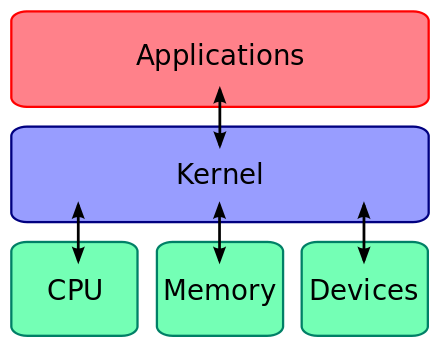
Advantages of Exokernel Operating System
Very fast performance because the kernel does not impose heavy abstractions.
Applications can design their own resource-management policies based on their needs.
Highly flexible structure since each application controls how to use hardware.
Small, simple kernel reduces bugs and kernel-level crashes.
Less OS overhead means better efficiency for CPU-intensive and real-time applications.
Allows experimentation with new OS designs because most functionality is outside the kernel.
Disadvantages of Exokernel Operating System
Complex application development because apps must implement their own OS services (file systems, memory management).
Less standardization because different applications may use different resource-management techniques.
Harder for general users because more responsibility is placed on programs.
Application-level bugs can easily corrupt data due to direct hardware access.
Not suitable for large consumer operating systems like Windows or Android.
Few real-world implementations because development requires expert-level control.
Concept of Virtual Machine
A virtual machine is a software-based computer system that behaves exactly like a real physical computer. It runs on top of another operating system and uses virtual hardware such as virtual CPU, virtual RAM, virtual disk, and virtual network. This allows one physical computer to run many operating systems at the same time. Each virtual machine works independently and does not affect other virtual machines, just like separate physical computers.
Important Points
A virtual machine is created using a software layer called hypervisor.
It shares the physical computer’s hardware but provides each VM its own virtual CPU, memory, and storage.
Each virtual machine can run its own operating system such as Windows, Linux, or macOS.
Virtual machines are isolated from each other, so if one crashes, others continue working normally.
They make it possible to run many operating systems on a single computer at the same time.
Used for testing, development, server hosting, cloud computing, and security.
VMs improve hardware utilization because multiple systems run on one physical device.
They allow old software or OS versions to run without affecting the main system.
Virtual machines can be paused, copied, moved, or deleted easily.
VM storage and configurations are stored in files, so backups are simple.
VMs are widely used in data centers, cloud platforms, and enterprise environments.
Popular virtual machine tools include VMware, VirtualBox, Hyper-V, and KVM.
Diagram of Virtual Machine

Types of Virtual Machines
1. System Virtual Machine
Creates a complete virtual computer.
Allows running a full OS like Windows or Linux inside another OS.
Acts like a real physical machine with its own virtual CPU, RAM, and disk.
Example: Windows running inside Ubuntu using VirtualBox.
2. Process Virtual Machine
Designed to run a single program, not a full OS.
Provides a virtual environment for one application.
Example: Java Virtual Machine (JVM) runs Java programs.
How a Virtual Machine Works
The physical hardware (CPU, RAM, Storage) belongs to the host machine.
A hypervisor sits between the hardware and the virtual machines.
The hypervisor divides hardware resources and assigns them to each virtual machine.
Virtual machines think they are using real hardware, but actually they use virtual hardware created by the hypervisor.
Each VM runs its own operating system independently.
All VMs work in isolation — they cannot harm each other or the host system.
The hypervisor monitors all VMs and ensures fair sharing of CPU, memory, and devices.
The user can start, stop, reset, clone, or move virtual machines anytime.
Advantages of Virtual Machine
Multiple operating systems can run on one computer at the same time.
They provide complete isolation; a crash inside one VM does not affect the host or other VMs.
Easy to test new software, viruses, or OS versions safely.
Hardware cost is reduced because one machine can replace many physical systems.
Virtual machines can be paused, resumed, copied, and backed up easily.
Better hardware utilization because multiple VMs share the same resources.
Useful for cloud computing, server hosting, and enterprise applications.
Allows running old operating systems or legacy programs without affecting the host machine.
Disadvantages of Virtual Machine
Performance is slightly slower than a real physical computer because hardware is shared.
Running many VMs at the same time requires a powerful CPU and large RAM.
Installation of hypervisors and VMs requires more technical knowledge.
If the host system fails, all virtual machines stop working.
Some hardware-heavy tasks (gaming, graphics, 3D processing) may not run perfectly inside a VM.
More storage space is needed because each VM requires its own OS files and application files.
Real Examples of Virtual Machines
VirtualBox: Runs Windows, Linux, macOS on any host system.
VMware Workstation / VMware ESXi: Used in companies and data centers.
Microsoft Hyper-V: Windows-based virtualization platform.
KVM (Kernel-based Virtual Machine): Built into Linux, used in servers and cloud platforms.
QEMU: Open-source virtualization used with Linux.
MCQs From Virtual Machine Topic
1. A virtual machine is mainly created using which component?
A. Compiler
B. Hypervisor
C. Kernel
D. Scheduler
Correct Answer: B
2. A virtual machine provides:
A. Real hardware support only
B. A software-based environment that works like a physical computer
C. Only network virtualization
D. Only memory virtualization
Correct Answer: B
3. A system virtual machine allows:
A. Only one application to run
B. Only one operating system
C. Multiple operating systems to run on the same hardware
D. Multiple CPUs to be added
Correct Answer: C
4. Which of the following is a process virtual machine?
A. VirtualBox
B. VMware
C. JVM
D. Hyper-V
Correct Answer: C
5. What is the main role of a hypervisor?
A. Manage file systems
B. Provide CPU scheduling and memory mapping for VMs
C. Perform only disk optimization
D. Replace the operating system
Correct Answer: B
6. Virtualization allows multiple operating systems to run on a single machine by:
A. Using CPU parallelism
B. Creating virtual hardware through software
C. Removing the kernel
D. Increasing cache memory
Correct Answer: B
7. Virtualization is achieved using which OS technique?
A. CPU scheduling only
B. Virtual memory only
C. Both CPU scheduling and virtual memory concepts
D. Deadlock handling
Correct Answer: C
(This matches the doubt you asked:
Yes — virtualization internally uses CPU scheduling + virtual memory techniques to “simulate” multiple OS environments.)
8. Virtual machines achieve isolation by:
A. Running all processes in the same memory space
B. Using separate virtual hardware for each VM
C. Removing the kernel
D. Sharing only CPU but same memory
Correct Answer: B
9. Which of the following is NOT an advantage of virtual machines?
A. Running multiple OS on one machine
B. High-level isolation
C. Ability to clone and migrate VMs
D. Faster performance than physical hardware
Correct Answer: D
10. Which of the following statements is TRUE about virtualization?
A. Every VM directly uses real hardware without any layer
B. VMs cannot run different OS
C. Each VM gets virtual hardware created by the hypervisor
D. VM execution stops if another VM starts
Correct Answer: C
11. In virtualization, a single physical CPU is shared among multiple VMs using:
A. Memory swapping
B. Disk scheduling
C. CPU scheduling
D. Device drivers only
Correct Answer: C
12. Virtual memory helps virtualization by:
A. Allowing each VM to assume it has more RAM than physically available
B. Preventing multitasking
C. Killing unused processes
D. Preventing VMs from booting
Correct Answer: A
13. Which of the following is a system-level virtual machine?
A. JVM
B. Docker container
C. VirtualBox
D. Python Interpreter
Correct Answer: C
14. Which of the following can run multiple VMs simultaneously in enterprise servers?
A. VMware ESXi
B. MS Paint
C. BIOS
D. Notepad
Correct Answer: A
15. Major disadvantage of virtual machines is:
A. They cannot run Windows
B. They reduce hardware dependency
C. They may cause performance overhead
D. They cannot run Linux
Correct Answer: C
UNIX Operating System
UNIX is a multiuser, multitasking operating system designed for stability, portability, and security. It was originally developed at Bell Labs and is known for its strong command-line interface, powerful networking, and scalable architecture. UNIX is widely used in servers, workstations, and academic systems because of its reliability and flexibility.
Important Points
Supports multiple users at the same time, making it strong in networking and server environments.
Provides multitasking where many processes run together smoothly.
Follows a simple and clean file system structure (everything is treated as a file).
Highly portable and can run on many types of hardware.
Uses strong protection mechanisms to ensure security and stability.
Mostly controlled using command-line interface, though GUI versions exist.
Designed for developers, researchers, and server administrators.
Famous UNIX-like systems include Linux, macOS, Solaris, AIX, and FreeBSD.
Diagram of UNIX Architecture
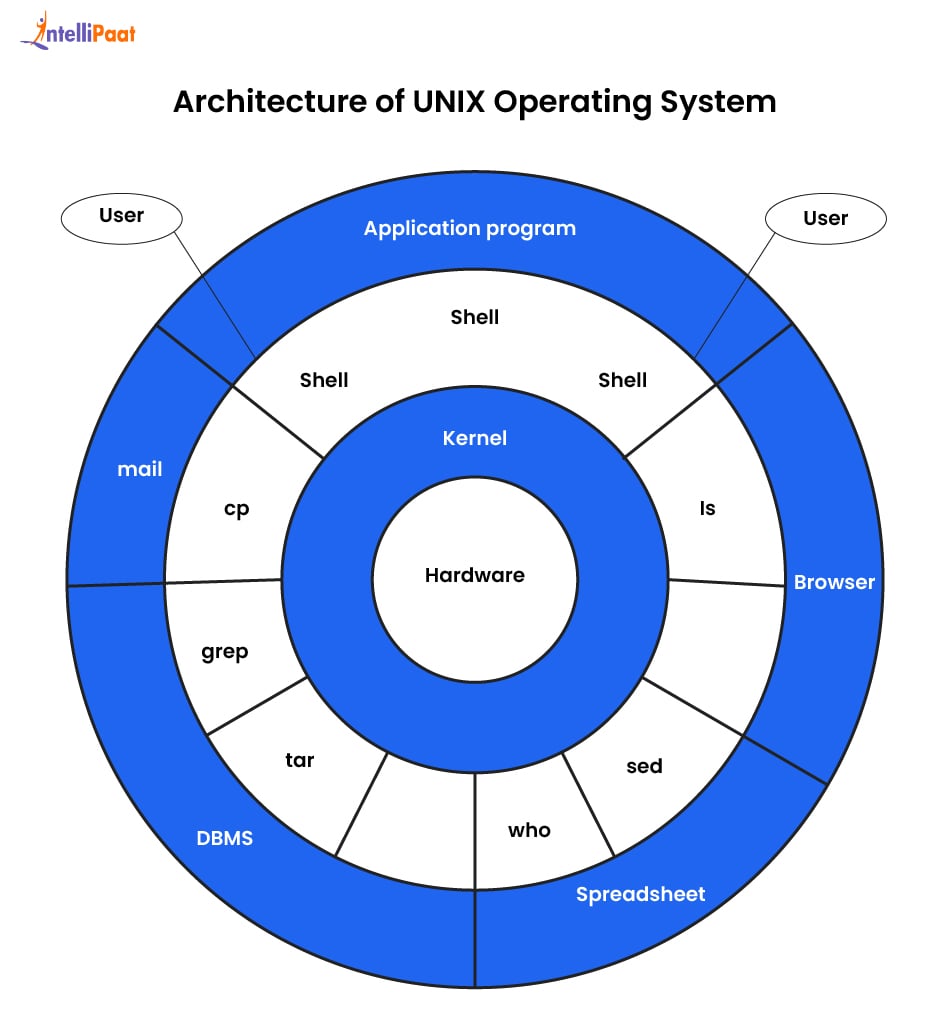


Features of UNIX Operating System
Multiuser system with strong resource sharing.
Multitasking with advanced process management.
Security features like file permissions and user groups.
Highly stable and rarely crashes compared to other OS types.
Portable across different hardware systems.
Strong shell and scripting support for automation.
Built-in networking capabilities.
Supports hundreds of developers tools.
Advantages of UNIX
Very stable and reliable for long-term use.
Excellent security due to permission-based file system.
Strong multitasking and multiuser support.
Highly portable across different machines.
Ideal for servers and advanced networking tasks.
Great for programming and automation.
Disadvantages of UNIX
Mostly command-line based, which is difficult for beginners.
Limited availability of common home-use software.
Hardware support may require manual configuration.
Not widely used for gaming or general desktop usage.
Real-Life Uses of UNIX
Banking and financial servers
University and research labs
Supercomputers
Cloud servers
Network management tools
macOS-based systems
Internet backbone systems
Windows Operating System
Windows is a graphical-based operating system developed by Microsoft. It is designed for ease of use, compatibility, and wide availability. Windows is popular on desktops and laptops because it offers user-friendly interfaces, large software support, and strong multimedia features.
Important Points
Uses a GUI-focused design with windows, icons, and menus.
Supports multitasking and multi-user environment but mainly used as a personal OS.
Provides strong device support due to wide hardware compatibility.
Comes with built-in tools like Control Panel, File Explorer, and Task Manager.
Uses a hybrid kernel (Windows NT).
Most common OS for personal computers, offices, and gaming.
Offers support for a large variety of applications and games.
Diagram of Windows Architecture
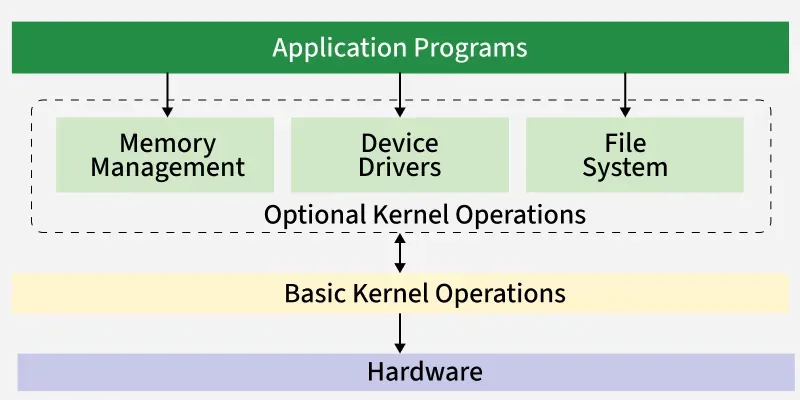

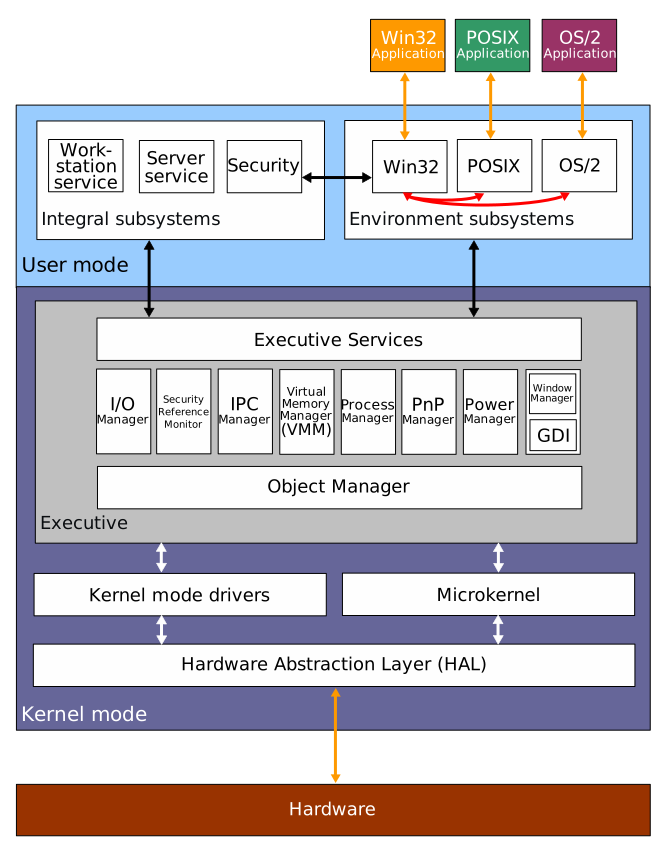
Features of Windows Operating System
Easy-to-use graphical interface.
Supports multitasking with smooth performance.
Large software and application ecosystem.
Built-in drivers for thousands of hardware devices.
Strong multimedia support.
Regular security updates and patches.
Uses NTFS file system for reliability.
Supports networking and remote access.
Advantages of Windows
User-friendly and simple for beginners.
Wide hardware and software compatibility.
Supports a huge range of applications, games, and tools.
Easy installation and updates.
Good driver support for printers, scanners, GPUs, etc.
Strong GUI interface improves productivity.
Disadvantages of Windows
More prone to viruses compared to UNIX-like systems.
Slower over time if not maintained properly.
Requires paid license.
Less stable than UNIX-based servers.
Frequent updates may interrupt workflow.
Real-Life Uses of Windows
Personal computers and laptops
Office and corporate environments
Gaming systems
Multimedia editing
Schools and institutions
Business management tools
Home entertainment
Difference Between UNIX and Windows
UNIX | Windows |
|---|---|
Designed as a multiuser, multitasking OS used for servers, networks, and development environments. | Designed mainly for single-user desktop use, focusing on personal and office work. |
Uses a command-line focused interface, preferred by programmers and system administrators. | Uses a graphical interface (GUI) as the main way of interaction, easy for general users. |
Provides strong built-in security using user/group permissions and strict access control. | Security depends on updates and user settings; more vulnerable to malware and viruses. |
Known for high stability, often used for servers that run for months without reboot. | Less stable for continuous server use; updates or drivers often require restart. |
Mostly open-source (Linux, BSD), free to modify and distribute. | Proprietary, requires paid licenses, controlled by Microsoft. |
Supports excellent portability, runs on many hardware architectures. | Limited portability, mainly built for x86/x64 hardware. |
Uses monolithic or modular kernel, depending on the variant. | Uses a hybrid kernel (Windows NT). |
Strong in scripting, networking, programming, and automation tools. | Strong in desktop apps, gaming, multimedia, and office tools. |
Very low virus risk due to strict permissions. | High virus risk due to common executable permissions. |
Commonly used in servers, cloud systems, scientific computing, and enterprise networks. | Commonly used in homes, schools, businesses, and gaming systems. |